
Staff details have a way of scattering, living in inboxes, contracts and people’s heads. When you need them fast, they are never in one place.
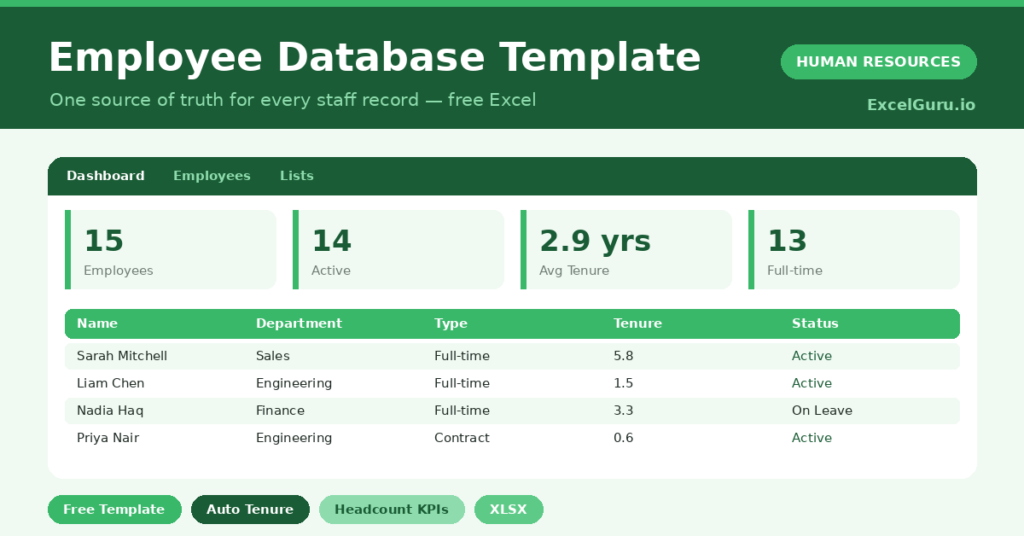
This free employee database brings every record together. You enter each person once, and the sheet tracks tenure and headcount for you. You will also find realistic sample data already inside the file. Therefore, you can explore every formula, dropdown and chart first, and then replace the samples with your own records in minutes.
Below, we explain the formulas, the structure, and how to adapt the database to your own organisation.
What Is an Employee Database?
An employee database is a single, structured record of everyone who works for you. It holds contact details, role, department and start date.
It also calculates useful figures, such as tenure, from that data. As a result, it becomes the foundation for every other HR process you run.
Why Does a Central Database Matter?
Scattered staff data causes slow answers and avoidable errors. Two versions of the truth quickly become no truth at all.
A single database fixes that. Therefore, headcount, tenure and contact details are always one click away and always consistent. It also makes reporting to leadership quick and credible.
Why Use This Template?
A clean database underpins good people management. In particular, this one helps you:
- Keep every staff record in one place.
- Calculate tenure automatically from start dates.
- See headcount by department instantly.
- Track employment type and status.
- Feed consistent data into your other HR sheets.
What’s Inside the Template?
The workbook has four tabs:
- How to Use — a built-in guide.
- Dashboard — headcount, tenure and type KPIs.
- Employees — one row per person.
- Lists — department, location, type and status dropdowns.
What Formulas Does the Template Use?
The database uses clear Excel formulas:
| Formula | What it does |
| =ROUND((TODAY() – Start Date)/365, 1) | Calculates tenure in years. |
| =COUNTIF(Status,”Active”) | Counts your active employees. |
| =COUNTIF(Department, d) | Counts headcount in each department. |
| =COUNTIF(Type,”Full-time”) | Counts full-time staff. |
| =AVERAGEIF(Tenure,”>0″) | Calculates the average tenure. |
How Do You Use the Template?
Setup takes only a few minutes. Just follow these steps:
- Open the Employees tab and add each person.
- Enter their department, job title and contact details.
- Choose the employment type and location.
- Add the start date so tenure calculates.
- Set the status to Active, On Leave or Terminated.
- Review headcount and tenure on the Dashboard.
What Are the Best Use Cases?
The database fits many teams, such as:
- Small businesses without HR software.
- Managers tracking their team’s details.
- HR teams reporting headcount to leadership.
- Finance teams planning payroll and budgets.
- Anyone consolidating scattered staff records.
How Can You Modify the Template?
You can tailor it freely. To add fields, insert columns such as salary band or contract end date, then summarise them on the dashboard.
You can also edit the dropdown lists to match your own departments and locations.
Moreover, the sheet covers 50 employees by default, and you can copy the formula row downward for more.
What Mistakes Should You Avoid?
A few habits weaken the database. Therefore, avoid these common mistakes:
- Using inconsistent employee IDs across sheets.
- Leaving the status blank, which breaks the counts.
- Storing sensitive data without proper access control.
- Letting records go stale after people leave or move.
Tips to Get the Most From It
- Use one consistent employee ID everywhere.
- Update status the day someone joins, moves or leaves.
- Protect the file, since it holds personal data.
- Review the department chart before any hiring decision.
Frequently Asked Questions
How is tenure calculated?
It subtracts the start date from today’s date and converts it to years. Therefore, tenure updates automatically every time you open the file.
Is it safe to store staff data here?
Treat the file as confidential and restrict who can open it. For larger teams or stricter rules, consider dedicated HR software with access controls.
Can I link it to my other HR templates?
Yes. Use the same employee IDs in your attendance, leave and timesheet sheets so records line up cleanly.
How many employees can it hold?
It is ready for 50 employees. However, you can copy the formula row downward to track many more.
Does it work in Google Sheets?
It does, with small tweaks. After importing, re-check the dropdowns and conditional formatting.
Download the Template and Get Started
Every HR task starts with knowing your people. This database gives you that knowledge in one reliable place.
Download the Employee Database Template and organise your staff records today.