
Hiring quickly turns messy. Resumes pile up in your inbox, replies scatter across threads, and good candidates slip through the cracks. Sooner or later, you lose track of who is at which stage.
This free applicant tracking template fixes that. It gives you one organized place to log every candidate, follow their progress, and see your hiring health at a glance. Best of all, it runs in Excel, so you need no extra software.
In this guide, we explain what the template includes, the formulas it uses, and how to tailor it to your own hiring process.
What Is an Applicant Tracking Template?
An applicant tracking template is a spreadsheet that records and manages job candidates. It captures who applied, for which role, and where they sit in your pipeline.
Think of it as a lightweight ATS, short for applicant tracking system. However, it lives in Excel, so it stays simple, free, and fully under your control.
Why Use This Template?
A clear tracker saves time and improves decisions. Specifically, this template helps you:
- Keep every candidate’s status in one shared view.
- Measure time-to-hire automatically, without manual math.
- See which sources deliver your best applicants.
- Spot bottlenecks in your hiring funnel early.
- Give hiring managers a quick, professional snapshot.
What’s Inside the Template?
The workbook has five focused tabs:
- How to Use — a built-in guide for new users.
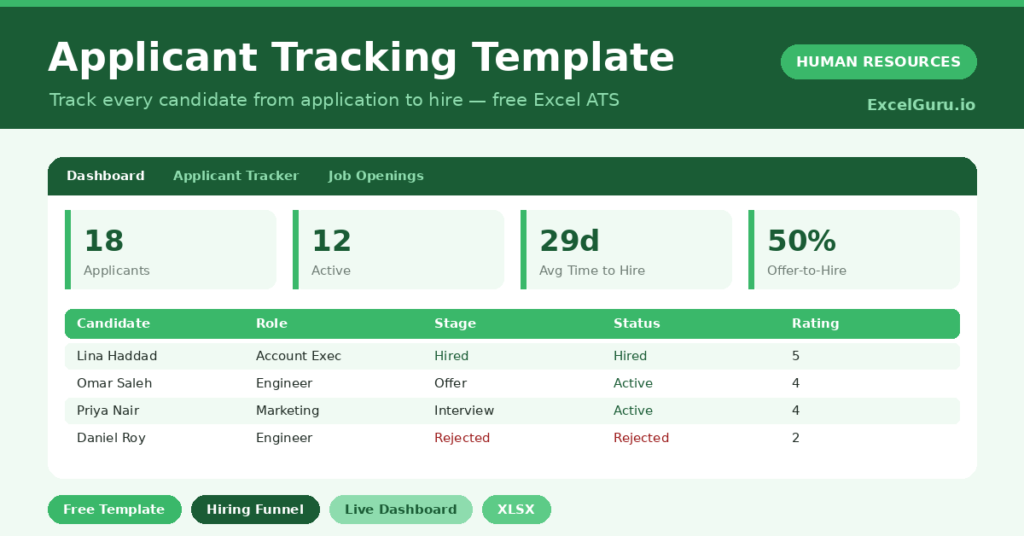
- Dashboard — KPIs plus hiring-funnel and source charts.
- Applicant Tracker — the main log, one row per candidate.
- Job Openings — the roles you are recruiting for.
- Lists — dropdown values for stages, sources, and recruiters.
What Formulas Does the Template Use?
The template relies on a handful of dependable Excel formulas. Here is what each one does:
| Formula | What it does |
| =IF(Status=”Active”,TODAY(),Last Updated)-Date Applied | Counts the days a candidate spends in the pipeline. |
| =AVERAGEIFS(Days, Status, “Hired”) | Returns your average time-to-hire in days. |
| =COUNTIF(Status,”Active”) | Totals the candidates still in play. |
| =COUNTIF(Stage,”Interview”) | Counts candidates at each funnel stage for the chart. |
| =COUNTIF(Source,”LinkedIn”) | Measures how many applicants each source delivered. |
| =Hired / (Offer + Hired) | Calculates your offer-to-hire conversion rate. |
| =AVERAGE(Rating) | Shows the average interview rating across candidates. |
How Do You Use the Template?
Setup is fast, and daily use is faster. Simply follow these steps:
- Open the Job Openings tab and list the roles you are hiring for.
- Move to the Applicant Tracker and add one row per candidate.
- Type the name, role, source, date applied, stage, status, and rating.
- Update the Current Stage and Last Updated whenever a candidate moves forward.
- Set the Status to Hired, Rejected, or Withdrawn to close a candidate.
- Open the Dashboard to review your funnel, sources, and time-to-hire.
What Are the Best Use Cases?
This template fits teams of almost any size. For instance, it works well for:
- Small businesses making their first few hires.
- Startups that want structure before buying an ATS.
- Recruiters managing several open roles at once.
- Hiring managers who need a clear pipeline summary.
- Agencies tracking candidates across multiple clients.
How Can You Modify the Template?
You can shape the template around your own process. To change the hiring stages, open the Lists tab and edit the stage names; the dropdowns update instantly.
You can also add recruiters or sources in the same way. Moreover, the tracker holds up to 60 candidates by default, and you can copy the formula row downward to add more.
If you report on extra fields, just insert a column on the tracker. Then add a matching COUNTIF on the dashboard to chart it.
Tips to Get the Most From It
- Update statuses the same day, so your metrics stay honest.
- Review source performance monthly, and double down on what works.
- Watch the funnel for stages where candidates stall.
- Keep notes short and specific, because future-you will thank you.
Frequently Asked Questions
Is this template a real applicant tracking system?
It is a lightweight ATS built in Excel. It will not parse resumes or send emails, but it does track candidates, stages, and metrics well. For many small teams, that is exactly enough.
How is time-to-hire calculated?
The template measures the days between the date applied and the close date. For hired candidates, it uses the Last Updated date as the close. Then it averages those days across everyone marked as Hired.
Can multiple people use it at once?
Yes, if you store it on a shared drive or OneDrive. For true simultaneous editing, save it to the cloud and open it in Excel for the web.
Does it work in Google Sheets?
It does, with small adjustments. After importing, re-check the dropdown lists and the conditional formatting, since these features behave slightly differently.
Download the Template and Get Started
A messy inbox is no way to run a hiring process. This template gives you structure, clarity, and useful metrics from day one.
Download the Applicant Tracking Template, open the How to Use tab, and start logging candidates today. Your next great hire is easier to find when nothing slips through the cracks.