
A rota looks simple until it is wrong. One gap in cover or one unfair run of night shifts, and the whole week feels the strain.
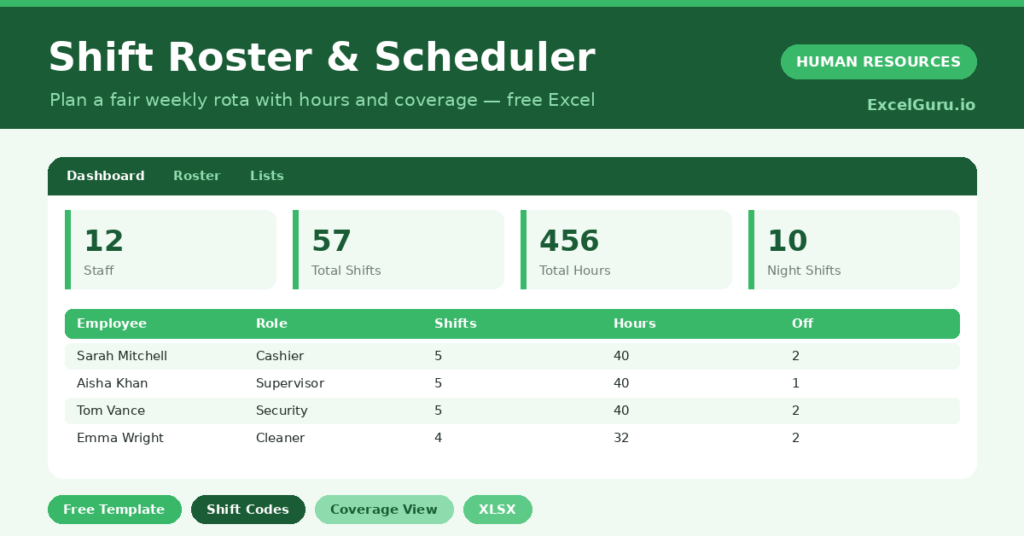
This free shift roster makes scheduling fair and clear. You assign shifts for the week, and the sheet totals hours, off days and coverage automatically. You will also find realistic sample data already inside the file. Therefore, you can explore every formula, dropdown and chart first, and then replace the samples with your own records in minutes.
Below, we explain the codes, the formulas, and how to adapt the roster to your own team.
What Is a Shift Roster?
A shift roster is a weekly schedule that assigns each employee to a shift on each day. It uses short codes to keep the grid quick to fill.
From those codes, it counts shifts, hours and off days for every person. As a result, you can balance the workload and check cover at a glance.
Why Does Good Scheduling Matter?
Scheduling shapes both service and morale. Too little cover frustrates customers, while unfair patterns burn out your team.
A clear roster balances both. Therefore, you can spread shifts fairly and make sure every day is covered. Visible hours also help you control labour cost and stay within limits.
Why Use This Template?
A clear roster makes scheduling fast and fair. In particular, this one helps you:
- Assign shifts for the whole week in one grid.
- Count shifts, hours and off days per person.
- Check coverage by shift type.
- Balance night shifts across the team.
- Spot gaps before you publish the rota.
What’s Inside the Template?
The workbook has four tabs:
- How to Use — a built-in guide.
- Dashboard — shifts, hours and coverage KPIs.
- Roster — the weekly grid, one row per person.
- Lists — shift code and role dropdowns.
What Formulas Does the Template Use?
The roster uses dependable Excel formulas:
| Formula | What it does |
| =COUNTIF(days,”M”)+COUNTIF(days,”E”)+COUNTIF(days,”N”) | Counts working shifts per person. |
| =Shifts * 8 | Calculates total hours from shifts. |
| =COUNTIF(days,”O”) | Counts off days per person. |
| =SUMPRODUCT(–(roster=”N”)) | Counts total night shifts. |
| =SUM(Total Hours) | Totals scheduled hours across the team. |
How Do You Use the Template?
The roster is quick to build. Just follow these steps:
- Open the Roster tab and list your team.
- Set each person’s role.
- Mark each day with a shift code: M, E, N, O or L.
- Let shifts, hours and off days calculate.
- Check coverage by shift type.
- Review hours and balance on the Dashboard.
What Are the Best Use Cases?
The roster fits many teams, such as:
- Shops and cafes scheduling staff.
- Warehouses covering multiple shifts.
- Security teams planning night cover.
- Healthcare and care settings.
- Any team working in rotating shifts.
How Can You Modify the Template?
You can tailor it freely. To change shift length, edit the multiplier of eight in the hours formula.
You can also add shift codes on the Lists tab, such as a split or half shift.
Moreover, the roster covers 40 employees by default, and you can copy the formula row downward for more.
What Mistakes Should You Avoid?
A few habits weaken the roster. Therefore, avoid these common mistakes:
- Publishing before checking each day has cover.
- Loading the same people with every night shift.
- Ignoring leave when assigning shifts.
- Using codes the formulas do not recognise.
Tips to Get the Most From It
- Check coverage for every day before publishing.
- Rotate night shifts fairly across the team.
- Account for leave when you build the rota.
- Watch total hours to stay within working limits.
Frequently Asked Questions
What do the shift codes mean?
M, E and N are morning, evening and night shifts, O is a day off and L is leave. You can adjust these on the Lists tab.
How are hours calculated?
Each working shift counts as eight hours by default. You can change the multiplier if your shifts are a different length.
Can I check daily coverage?
Yes. The dashboard counts each shift type, so you can see whether mornings, evenings and nights are all covered.
Does it handle leave?
Yes. Mark leave with the L code so it is excluded from worked shifts and visible on the grid.
Does it work in Google Sheets?
It does, with minor adjustments to dropdowns and conditional formatting after importing.
Download the Template and Get Started
A fair, well-covered rota keeps both customers and staff happy. This scheduler helps you build one in minutes.
Download the Shift Roster & Scheduler Template and plan your week today.