
Hiring decisions are easy to make one at a time and hard to see all at once. Without a plan, headcount and cost both drift.
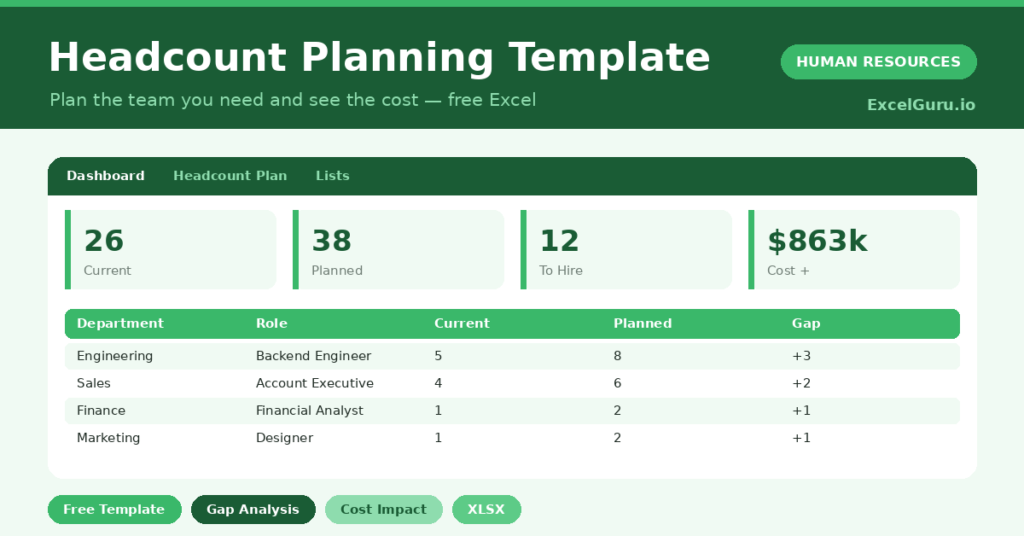
This free headcount planning template puts the whole picture on one screen. You set current and planned roles, and the sheet shows the gap and the cost. You will also find realistic sample data already inside the file. Therefore, you can explore every formula, dropdown and chart first, and then replace the samples with your own records in minutes. Below, we explain the formulas, the workflow, and how to adapt the plan to your own organisation.
What Is a Headcount Plan?
A headcount plan compares the team you have now with the team you intend to build. It works role by role, across every department.
It then calculates the hiring gap and the cost of closing it. As a result, you can plan growth deliberately rather than by reaction.
Why Does Headcount Planning Matter?
Headcount is usually the largest cost a business carries. Plan it loosely, and you risk both overspending and missing critical hires.
A clear plan ties every role to a need and a number. Therefore, you can defend the budget, sequence hiring sensibly and avoid surprises. It also gives finance a reliable figure to work with.
Why Use This Template?
A clear plan makes growth deliberate. In particular, this one helps you:
- Compare current and planned headcount per role.
- Calculate the hiring gap automatically.
- See the cost of each role and the whole plan.
- Prioritise and approve roles in order.
- Plan growth against a real budget.
What’s Inside the Template?
The workbook has four tabs:
- How to Use — a built-in guide.
- Dashboard — headcount, gap and cost KPIs.
- Headcount Plan — one row per role.
- Lists — department, priority and status dropdowns.
What Formulas Does the Template Use?
The plan uses dependable Excel formulas:
| Formula | What it does |
| =Planned – Current | Calculates the hiring gap for each role. |
| =Current * Avg Salary | Calculates the current cost of a role. |
| =Planned * Avg Salary | Calculates the planned cost. |
| =Planned Cost – Current Cost | Calculates the cost change. |
| =SUMIF(Department, d, Current) | Totals headcount by department. |
How Do You Use the Template?
Setup is quick. Just follow these steps:
- Open the Headcount Plan tab and list your roles.
- Enter current and planned headcount for each.
- Add the average salary per role.
- Let the gap and costs calculate.
- Set a priority and approval status.
- Review headcount and cost on the Dashboard.
What Are the Best Use Cases?
The plan fits many teams, such as:
- Founders planning a growth year.
- HR teams building the annual hiring plan.
- Finance teams budgeting for people cost.
- Managers proposing new roles.
- Anyone aligning hiring with budget.
How Can You Modify the Template?
You can tailor it freely. To add detail, insert columns for benefits or on-costs and include them in the cost formula.
You can also split the plan by quarter to phase your hiring.
Moreover, the sheet covers 40 roles by default, and you can copy the formula row downward for more.
What Mistakes Should You Avoid?
A few habits weaken the plan. Therefore, avoid these common mistakes:
- Planning roles without a clear business case.
- Ignoring on-costs like benefits in the salary figure.
- Approving every role before checking the budget.
- Letting the plan go stale as priorities shift.
Tips to Get the Most From It
- Tie each role to a measurable business need.
- Include on-costs for a realistic cost picture.
- Sequence hiring by priority, not all at once.
- Revisit the plan each quarter as things change.
Frequently Asked Questions
How is the hiring gap calculated?
It subtracts current headcount from planned headcount for each role. A positive gap is roles to hire; a negative one means a planned reduction.
Should I include benefits in the salary?
For an accurate cost, use a fully loaded figure that includes benefits and on-costs, or add a separate column for them.
Can I phase the plan over time?
Yes. Add a quarter or target-date column so you can sequence hiring across the year rather than all at once.
Does it replace a budget?
No, it feeds one. Use the cost totals as an input to your wider people budget and financial plan.
Does it work in Google Sheets?
It does, with minor adjustments to formatting after importing.
Download the Template and Get Started
Deliberate growth beats reactive hiring every time. This template lets you plan the team and the cost together.
Download the Headcount Planning Template and plan your next year of hiring today.