
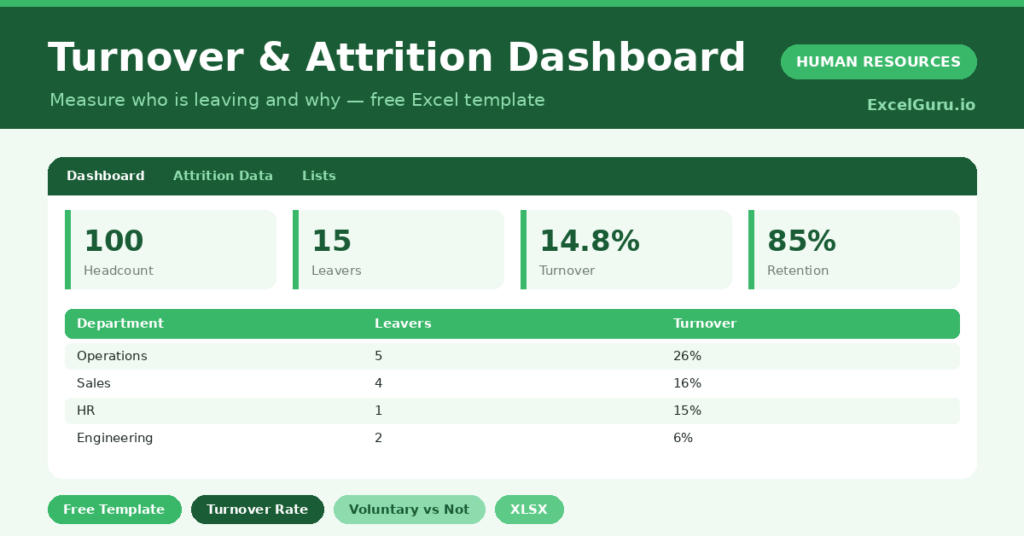
Turnover is expensive long before anyone calls it a problem. Each departure costs time, knowledge and money that rarely shows on a single report.
This free turnover dashboard turns leaver data into clear rates. You enter headcount and departures, and the sheet calculates attrition and retention. You will also find realistic sample data already inside the file. Therefore, you can explore every formula, dropdown and chart first, and then replace the samples with your own records in minutes. Below, we explain the formulas, the workflow, and how to adapt the dashboard to your own teams.
What Is a Turnover Dashboard?
A turnover dashboard measures how many people leave over a period, set against your headcount. It separates voluntary and involuntary departures.
From those figures, it calculates a turnover and a retention rate. As a result, you can compare teams and track the trend over time. Each department sits on its own row, so the differences between teams are easy to read.
Why Does Turnover Tracking Matter?
High turnover drains money and morale at once. Replacing a person costs far more than most teams expect, and the disruption spreads.
Measuring turnover makes the problem visible and specific. Therefore, you can find the teams that need attention and act before more people follow. Watching voluntary turnover in particular often reveals issues early. A clear rate also lets you measure whether your retention efforts are actually working over time.
Why Use This Template?
A clear dashboard turns churn into insight. In particular, this one helps you:
- Calculate turnover and retention by department.
- Separate voluntary and involuntary leavers.
- Compare attrition across teams.
- Spot where retention needs work.
- Track the trend over time.
What’s Inside the Template?
The workbook has four tabs:
- How to Use — a built-in guide.
- Dashboard — turnover, retention and leaver KPIs.
- Attrition Data — one row per department.
- Lists — the turnover formula reference.
What Formulas Does the Template Use?
The dashboard uses dependable Excel formulas:
| Formula | What it does |
| =Voluntary + Involuntary | Calculates total leavers per department. |
| =(Start + End Headcount) / 2 | Calculates average headcount. |
| =Total Leavers / Avg Headcount | Calculates the turnover rate. |
| =1 – Turnover Rate | Calculates the retention rate. |
| =SUM(Leavers) / SUM(Avg Headcount) | Calculates overall company turnover. |
How Do You Use the Template?
The dashboard is quick to build. Just follow these steps:
- Open the Attrition Data tab and list your departments.
- Enter the starting headcount for each.
- Add hires for the period.
- Record voluntary and involuntary leavers.
- Let turnover and retention calculate.
- Review the rates on the Dashboard.
What Are the Best Use Cases?
The dashboard fits many teams, such as:
- HR teams reporting attrition to leadership.
- Managers tracking their team’s stability.
- Founders monitoring early-stage churn.
- People teams targeting retention efforts.
- Anyone benchmarking turnover over time.
How Can You Modify the Template?
You can adapt it easily. To track time, copy the sheet for each month or quarter and compare the rates.
You can also add a reason-for-leaving column to dig into the causes of voluntary turnover.
Moreover, the sheet covers 30 rows by default, and you can copy the formula row downward for more.
What Mistakes Should You Avoid?
A few habits weaken the dashboard. Therefore, avoid these common mistakes:
- Mixing voluntary and involuntary leavers together.
- Using headcount from a single day rather than an average.
- Ignoring small teams where one leaver skews the rate.
- Tracking the rate without ever acting on it.
Tips to Get the Most From It
- Separate voluntary and involuntary leavers clearly.
- Use average headcount, not a single snapshot.
- Watch voluntary turnover as an early warning.
- Compare departments to focus your efforts.
Frequently Asked Questions
How is the turnover rate calculated?
It divides total leavers by the average headcount for the period. Average headcount is the start and end figures averaged, which smooths out changes.
Why separate voluntary and involuntary leavers?
They mean very different things. Voluntary turnover often signals problems with engagement or pay, while involuntary reflects performance or restructuring decisions.
What is a healthy turnover rate?
It varies widely by industry and role. The most useful comparison is your own trend over time and the gap between your teams.
Can I track turnover monthly?
Yes. Copy the sheet for each period and compare the rates to see whether attrition is rising or falling.
Does it work in Google Sheets?
It does, with minor adjustments to formatting after importing.
Download the Template and Get Started
You cannot fix turnover you cannot see. This dashboard makes attrition clear, specific and trackable.
Download the Turnover & Attrition Dashboard and measure your retention today.