
Training records have a habit of going stale quietly. A certificate expires, nobody notices, and suddenly a compliance gap is staring back at you.
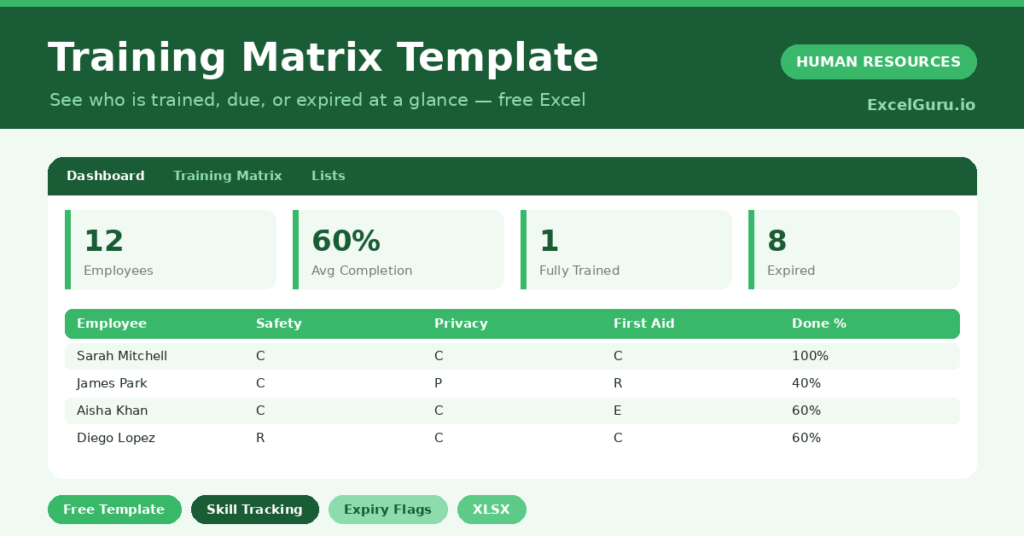
This free training matrix keeps every record visible. You map each employee against the courses they need, and the sheet tracks completion and expiry. You will also find realistic sample data already inside the file. Therefore, you can explore every formula, dropdown and chart first, and then replace the samples with your own records in minutes.
Below, we explain the codes, the formulas, and how to adapt the matrix to your own training needs.
What Is a Training Matrix?
A training matrix is a grid that maps every employee against the training each one needs. Each cell shows the status of one course for one person.
From those cells, it calculates a completion rate per employee. As a result, you can see your whole training picture in a single view.
Why Does Training Tracking Matter?
Untracked training is a hidden risk. Expired safety or compliance certificates can mean fines, accidents or failed audits.
A clear matrix removes that blind spot. Therefore, you can chase due and expired training before it becomes a problem. It also shows where skills are thin, which helps you plan development.
Why Use This Template?
A clear matrix keeps your team compliant and capable. In particular, this one helps you:
- Map every employee against required courses.
- Track completion, in-progress and expired status.
- Calculate a completion rate per person.
- Spot expired certificates instantly.
- Plan training where gaps appear.
What’s Inside the Template?
The workbook has four tabs:
- How to Use — a built-in guide.
- Dashboard — completion, expiry and status KPIs.
- Training Matrix — the grid of employees and courses.
- Lists — the status code reference.
What Formulas Does the Template Use?
The matrix uses dependable Excel formulas:
| Formula | What it does |
| =COUNTIF(courses, “C”) | Counts completed courses per employee. |
| =Completed / Required | Calculates each person’s completion rate. |
| =COUNTIF(matrix,”C”) = 1 | Identifies fully trained employees. |
| =SUMPRODUCT(–(matrix=”E”)) | Counts expired certificates across the team. |
| =SUMPRODUCT(–(matrix=”R”)) | Counts outstanding required courses. |
How Do You Use the Template?
The matrix is quick to maintain. Just follow these steps:
- Open the Training Matrix tab and list your team.
- Mark each course with a code: C, P, R or E.
- Let the completed count and completion rate calculate.
- Scan for any expired or required courses.
- Plan training to close the gaps.
- Review completion on the Dashboard.
What Are the Best Use Cases?
The matrix fits many teams, such as:
- Businesses with safety or compliance training.
- Managers tracking team skills.
- HR teams preparing for audits.
- Operations teams certifying staff.
- Anyone planning a development program.
How Can You Modify the Template?
You can adapt it easily. To add a course, insert a column and update the required count in the formula.
You can also add an expiry-date column per course if you need exact renewal reminders.
Moreover, the sheet covers 40 employees by default, and you can copy the formula row downward for more.
What Mistakes Should You Avoid?
A few habits weaken the matrix. Therefore, avoid these common mistakes:
- Marking training done without proof of completion.
- Ignoring expired certificates until an audit.
- Using inconsistent codes the formulas miss.
- Tracking courses nobody actually needs.
Tips to Get the Most From It
- Review expired certificates every month.
- Keep the course list focused on what staff truly need.
- Use the completion chart to prioritize training.
- Update the matrix as soon as training is finished.
Frequently Asked Questions
What do the status codes mean?
C is completed, P is in progress, R is required but not started, and E is expired. You can adjust these on the Lists tab.
How is the completion rate calculated?
It divides completed courses by the number required. Therefore, it reflects how much of each person’s training is actually done.
Can I track certificate expiry dates?
The matrix flags expired courses with the E code. For exact renewal dates, add a date column beside each course.
How many courses can it track?
It comes with five courses, and you can add more by inserting columns and updating the required count.
Does it work in Google Sheets?
It does, with minor adjustments to dropdowns and conditional formatting after importing.
Download the Template and Get Started
A skilled, compliant team starts with knowing exactly where you stand. This matrix gives you that picture in one screen.
Download the Training Matrix Template and close your skills gaps today.