
Performance reviews go wrong when they feel arbitrary. Without a consistent method, the same performance can earn very different verdicts.
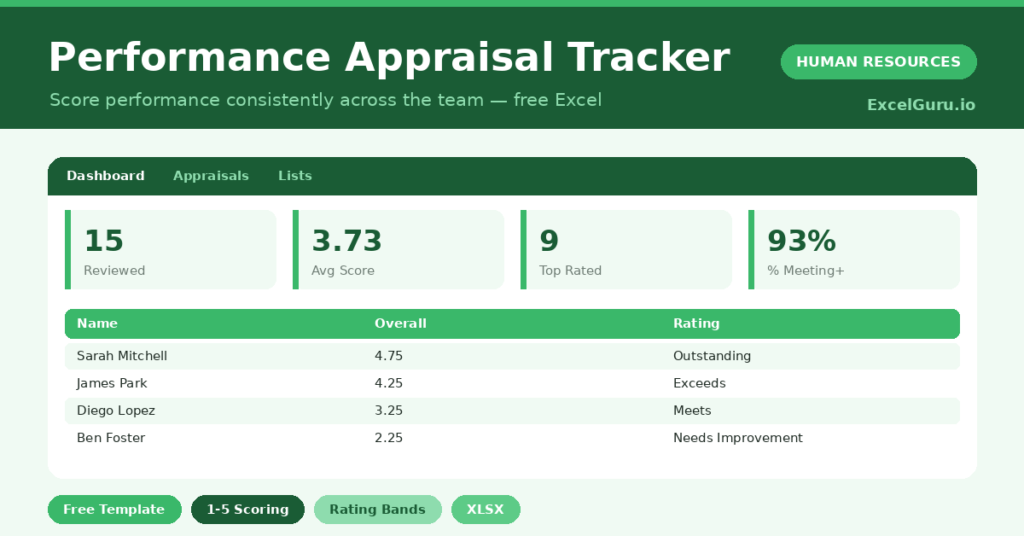
This free appraisal tracker brings consistency to every review. You score each person the same way, and the sheet rolls those scores into a clear rating. You will also find realistic sample data already inside the file. Therefore, you can explore every formula, dropdown and chart first, and then replace the samples with your own records in minutes.
Below, we explain the scoring, the formulas, and how to adapt the tracker to your own competencies.
What Is a Performance Appraisal Tracker?
A performance appraisal tracker records a structured score for each employee across several areas. It then combines those scores into one overall result.
From the overall score, it assigns a clear rating band. As a result, reviews become consistent, comparable and easy to defend.
Why Does Structured Appraisal Matter?
Unstructured reviews invite bias and inconsistency. Two managers can grade the same work very differently, which feels unfair and erodes trust.
A shared scale fixes that. Therefore, everyone is measured against the same standard, and ratings mean the same thing across teams. Clear scores also make development conversations far more useful. Over several cycles, the same scale lets you track whether each person is genuinely improving.
Why Use This Template?
A consistent tracker makes reviews fairer and faster. In particular, this one helps you:
- Score performance across four clear areas.
- Calculate an overall score automatically.
- Assign a consistent rating to every employee.
- See the rating distribution at a glance.
- Compare average scores across departments.
What’s Inside the Template?
The workbook has four tabs:
- How to Use — a built-in guide.
- Dashboard — rating distribution and department scores.
- Appraisals — one row per employee review.
- Lists — department and rating-scale reference.
What Formulas Does the Template Use?
The tracker uses dependable Excel formulas:
| Formula | What it does |
| =AVERAGE(Goals:Communication) | Calculates the overall score from the four areas. |
| =IF(Score>=4.5,”Outstanding”,…) | Assigns the rating band. |
| =COUNTIF(Rating,”Outstanding”) | Counts each rating across the team. |
| =AVERAGEIF(Department, d, Overall) | Calculates the average score per department. |
| =AVERAGEIF(Overall,”>0″) | Calculates the team’s average score. |
How Do You Use the Template?
The tracker is quick to run. Just follow these steps:
- Open the Appraisals tab and list each employee.
- Choose the review period.
- Score goals, skills, teamwork and communication from 1 to 5.
- Let the overall score and rating calculate.
- Add the reviewer’s name.
- Review the distribution on the Dashboard.
What Are the Best Use Cases?
The tracker fits many teams, such as:
- Small businesses running annual reviews.
- Managers grading their direct reports.
- HR teams calibrating ratings across the company.
- Leadership reviewing department performance.
- Anyone replacing a freeform review form.
How Can You Modify the Template?
You can tailor it freely. To change the areas, rename the four score columns to match your competencies.
You can also weight the areas by replacing the average with a weighted formula.
Moreover, the sheet covers 40 employees by default, and you can copy the formula row downward for more.
What Mistakes Should You Avoid?
A few habits weaken the tracker. Therefore, avoid these common mistakes:
- Scoring on recent events instead of the whole period.
- Using the scale inconsistently between managers.
- Rating everyone in the middle to avoid hard talks.
- Filing reviews without any follow-up action.
Tips to Get the Most From It
- Score the full review period, not just last month.
- Calibrate ratings across managers for fairness.
- Pair every low rating with a development plan.
- Track scores over time to see real progress.
Frequently Asked Questions
How is the overall score calculated?
It averages the four area scores. You can switch to a weighted formula if some areas matter more than others in your business.
What do the rating bands mean?
Scores roll into five bands, from Outstanding down to Unsatisfactory. The same score always lands in the same band, which keeps reviews consistent.
Can I add more competencies?
Yes. Add a score column and include it in the average. The rating logic then works on the new overall score.
Should the employee see the scores?
Sharing scores supports an open, fair conversation. Use them as the basis for feedback rather than a verdict delivered without discussion.
Does it work in Google Sheets?
It does, with minor adjustments to formatting after importing.
Download the Template and Get Started
Fair reviews start with a consistent method. This tracker gives every employee the same clear, defensible standard.
Download the Performance Appraisal Tracker and run fairer reviews today.