
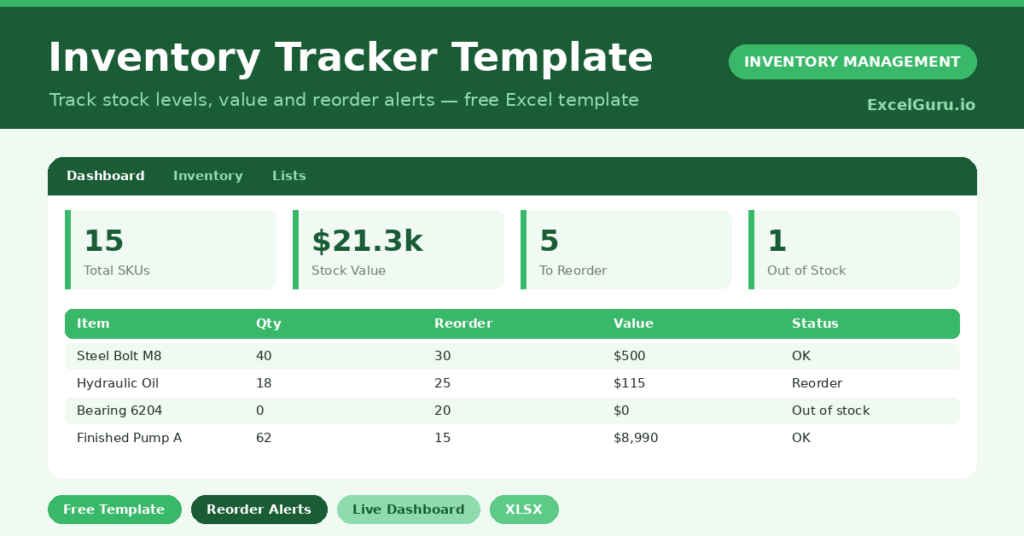
Lost sales and dead cash often share one root cause: nobody knows the real stock level. Spreadsheets drift, counts go stale, and reorders happen too late. This free inventory tracker template fixes that. You enter each item once, update quantities as they change, and the sheet flags exactly what to reorder. Below, we walk through what the template includes, the formulas behind it, and how to adapt it to your own products. You will also find realistic sample data already inside the file. Therefore, you can explore every formula, dropdown and chart first, and then replace the samples with your own records in minutes.
What Is an Inventory Tracker Template?
An inventory tracker template is a spreadsheet that lists every product you hold and its current quantity. It also records cost, location and a reorder level.
From those inputs, the template calculates stock value and a clear status. As a result, you always know what you own and what is running low.
Why Does Stock Visibility Matter?
Stock is often your largest current asset, yet it hides in boxes and back rooms. When you cannot see it clearly, you over-order some items and run out of others. Both mistakes cost real money. A live tracker replaces memory and guesswork with one trusted view. Consequently, you buy with confidence, free up cash, and stop losing sales to avoidable stockouts.
Why Use This Template?
A good tracker pays for itself quickly. Moreover, it takes only minutes a day to maintain. In particular, this one helps you:
- See total stock value in real time.
- Catch low stock before it becomes a stockout.
- Spot out-of-stock items instantly.
- Group value by category to guide buying.
- Share one trusted version with your team.
What’s Inside the Template?
The workbook has four simple tabs:
- How to Use — a built-in quick start guide.
- Dashboard — KPIs plus status and category charts.
- Inventory — the main list, one row per item.
- Lists — dropdown values for category, unit, supplier and location.
What Formulas Does the Template Use?
Each calculation uses a standard Excel formula. Here are the important ones:
| Formula | What it does |
| =Unit Cost * Qty on Hand | Calculates the stock value of each item. |
| =IF(Qty<=0,”Out of stock”,…) | Sets the status from quantity and reorder level. |
| =COUNTIF(Status,”Reorder”) | Counts how many items need reordering. |
| =SUMIF(Category, cat, Stock Value) | Totals stock value for each category. |
| =AVERAGEIF(Unit Cost,”>0″) | Returns the average unit cost across active items. |
How Do You Use the Template?
Setup takes only a few minutes. Just follow these steps:
- Open the Inventory tab and enter each item’s details in the amber columns.
- Set a sensible reorder level for every product.
- Update the Qty on Hand as you receive and sell stock.
- Let stock value and status calculate automatically.
- Open the Dashboard and act on every Reorder or Out-of-stock flag.
What Are the Best Use Cases?
The template suits any stock-holding business. For example:
- Retail shops tracking shelf and back-room stock.
- E-commerce sellers managing SKUs across categories.
- Cafes and kitchens watching consumables.
- Workshops keeping spare parts available.
- Small manufacturers tracking raw materials.
How Can You Modify the Template?
The template adapts easily. To add products, type below the last row; the formulas already reach row 53, and you can copy them further down. You can also rename the dropdown lists. Open the Lists tab and edit categories, units, suppliers or locations to match your business.
Finally, you can tighten the status rule. Adjust the multiplier in the status formula if you want the Low warning to trigger earlier.
What Mistakes Should You Avoid?
A few habits quietly undermine the template. Therefore, avoid these common mistakes:
- Leaving reorder levels at zero, which silently disables every alert.
- Forgetting to update quantities, so the dashboard drifts from reality.
- Mixing units within one item, which corrupts the stock value.
- Ignoring Low warnings until they harden into stockouts.
Tips to Get the Most From It
- Update quantities the same day stock moves.
- Set reorder levels from real lead times, not guesses.
- Review the dashboard weekly and clear every red flag.
- Use the category chart to spot where your cash is tied up.
Frequently Asked Questions
How many products can the template hold?
It is ready for 50 items out of the box. However, you can copy the formula row downward to track hundreds more without breaking anything.
Does it update stock automatically from sales?
No. This is a manual tracker, so you update quantities yourself. That keeps it free, offline and simple to control.
Can I use it in Google Sheets?
Yes. Most formulas import cleanly, although you should re-check the dropdowns and conditional formatting afterwards.
What does the Low status mean?
Low means stock has fallen near the reorder level but not below it. Therefore, it is an early warning to plan your next order.
Download the Template and Get Started
You cannot manage what you cannot see. This template gives you a clear, live view of your stock and its value.
Download the Inventory Tracker Template, open the How to Use tab, and add your first items today.