
Stock that moves between locations is stock at risk. While it sits in transit, it can be delayed, miscounted or simply lost from view.
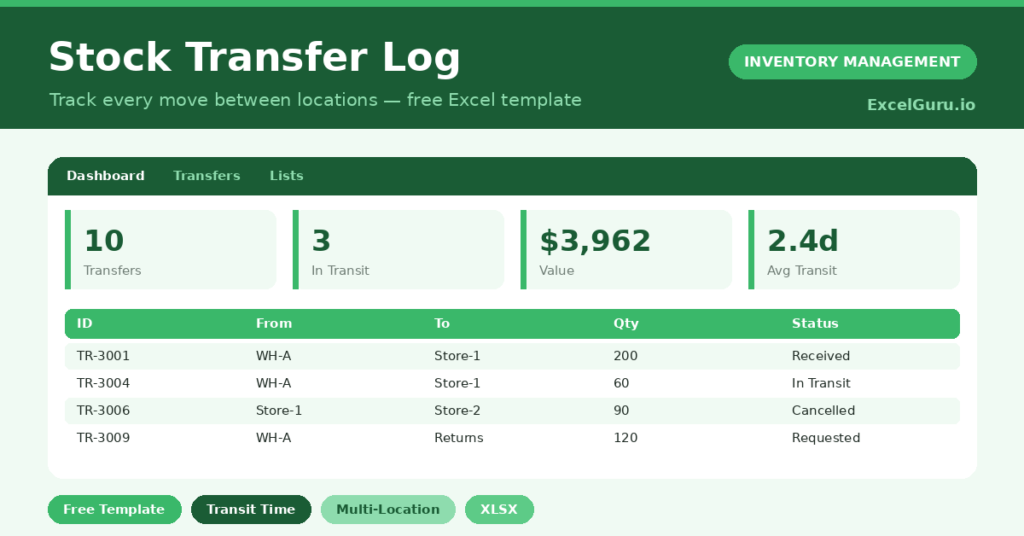
This free stock transfer log keeps every move visible. You record each transfer, and the sheet tracks its status and how long it takes. You will also find realistic sample data already inside the file. Therefore, you can explore every formula, dropdown and chart first, and then replace the samples with your own records in minutes.
Below, we explain the formulas, the workflow, and how to adapt the log to your own locations.
What Is a Stock Transfer Log?
A stock transfer log records every movement of stock between your locations. It captures the item, quantity, source, destination and status.
It also measures how long each transfer takes to arrive. As a result, you always know where in-transit stock is and when it should land.
Why Does Transfer Tracking Matter?
Stock in transit belongs to nobody until it is received. That gap is exactly where losses and disputes happen.
A log closes the gap by tracking every move end to end. Therefore, you can confirm receipts, chase delays and settle disputes with a clear record. It also reveals which routes are slow and need attention.
Why Use This Template?
A clear log keeps multi-location stock under control. In particular, this one helps you:
- See the status of every transfer at a glance.
- Track stock moving between any two locations.
- Measure how long transfers take to arrive.
- Total the value moving across your network.
- Spot transfers stuck in transit too long.
What’s Inside the Template?
The workbook has four tabs:
- How to Use — a built-in guide.
- Dashboard — status, value and transit-time KPIs.
- Transfers — one row per transfer.
- Lists — location and status dropdowns.
What Formulas Does the Template Use?
The log uses clear Excel formulas:
| Formula | What it does |
| =Qty * Unit Cost | Calculates the value of each transfer. |
| =Received Date – Transfer Date | Calculates the days in transit. |
| =COUNTIF(Status,”In Transit”) | Counts transfers still on the move. |
| =SUM(Transfer Value) | Totals the value moving across locations. |
| =SUMIF(To Location, l, Value) | Totals value received at each location. |
How Do You Use the Template?
Getting started is easy. Just follow these steps:
- Open the Transfers tab and log each move.
- Enter the date, item, quantity, source and destination.
- Add the unit cost so the value calculates.
- Set the status as the transfer progresses.
- Record the received date when it arrives.
- Review status and transit time on the Dashboard.
What Are the Best Use Cases?
The log fits many operations, such as:
- Retail chains moving stock between stores.
- Warehouses replenishing shop floors.
- Businesses balancing stock across sites.
- Returns teams routing goods back to base.
- Auditors verifying inter-site movements.
How Can You Modify the Template?
You can tailor it freely. To add locations, edit the Lists tab and both dropdowns update at once.
You can also add a carrier or tracking-number column for shipped transfers.
In addition, the log covers 40 transfers by default, and you can copy the formulas down for more.
What Mistakes Should You Avoid?
A few habits weaken the log. Therefore, avoid these common mistakes:
- Forgetting the received date, which breaks transit time.
- Leaving status as Requested after goods have moved.
- Recording the same stock at both ends at once.
- Ignoring transfers stuck in transit for weeks.
Tips to Get the Most From It
- Update status promptly at each stage.
- Record the received date on the day goods arrive.
- Use the transit-time figure to set delivery expectations.
- Investigate any route that is consistently slow.
Frequently Asked Questions
How is days in transit calculated?
It subtracts the transfer date from the received date. Therefore, it only appears once a transfer has been received.
Can I track transfers to many locations?
Yes. The source and destination both use a location dropdown, so you can move stock between any sites you define.
Should I log cancelled transfers?
Yes. Mark them Cancelled rather than deleting them, so you keep a complete record of activity.
Does it update stock balances automatically?
No. It tracks the movements themselves. You can pair it with a stock register if you want balances to update too.
Does it work in Google Sheets?
It does, with minor adjustments to dropdowns and formatting after importing.
Download the Template and Get Started
Stock in transit is easy to lose and hard to recover. This log keeps every move visible from request to receipt.
Download the Stock Transfer Log and track your moves with confidence today.