
Contractors who send rough, handwritten estimates lose work to competitors who send polished, professional proposals. Clients read a quote before they read anything else. A clear, itemised, professionally formatted proposal signals competence before the first nail is driven.
The problem is that building a professional proposal from scratch takes time most contractors do not have. Typing line items into a blank document, manually calculating totals, adding tax, formatting the layout — it is a 30-minute task that happens between jobs, after hours, and always under pressure.
This free Excel construction proposal template solves that problem. Fill in your company details once, enter the line items for the job, and a complete, print-ready quote — with auto-calculated subtotal, sales tax, and a payment due date — is ready in minutes. Every calculation is handled by formulas. No manual arithmetic. No errors.
Download the free Construction Proposal Template and send your next quote before the competitor even opens their laptop.
What Is the Construction Proposal Template?
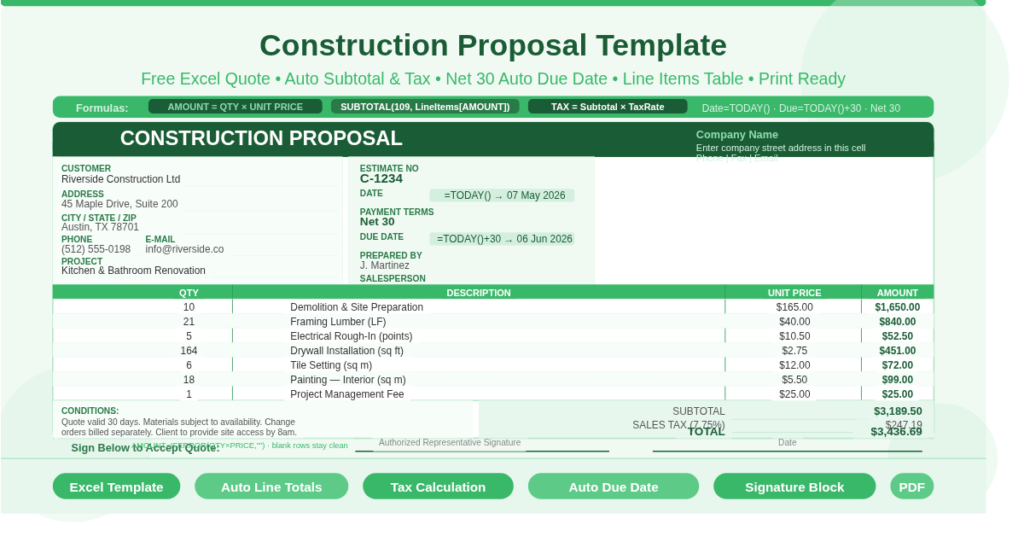
The Construction Proposal Template is a free Microsoft Excel workbook with a single professional sheet. It produces a formal, itemised construction quote that includes company information, full client details, a line item cost table, a conditions section, a totals panel with tax calculation, and a signature acceptance block — all on one printable page.
The template uses Excel’s structured table (named LineItems) and a set of named ranges (Subtotal, TaxRate, Other) to handle all calculations automatically. You fill in the fields; the formulas handle the numbers. The result is a quote that looks like it came from an established firm, not a back-of-the-envelope estimate.
The Two-Panel Layout: Company and Client
The proposal opens with a clear two-panel identity section at the top of the sheet.
The Company Panel
The top-right corner holds your company’s identity: Company Name, Street Address, Phone, and Fax/Email. These fields are static — enter your details once and they remain across every quote you produce from this file. Above these fields, CONSTRUCTION PROPOSAL appears as a bold heading that anchors the document’s purpose immediately.
The Client Panel
The left-hand column captures all client and job information across 12 labelled fields: Customer Name, Address, City/State/Zip, Phone, Email, Salesperson, Project Name, Prepared By, Attention (the decision-maker the proposal addresses), and Payment Terms. Two fields calculate automatically — Date uses =TODAY() to stamp the current date on every new proposal, and Due Date uses =TODAY()+30 to enforce Net 30 payment terms without any manual calculation. The Estimate No field holds a reference number (sample: C-1234) for tracking proposals across jobs.
Together, these panels mean every proposal identifies the contractor, the client, the job, and the pricing terms clearly — before the client reads a single line item.
The Line Items Table — The Heart of the Proposal
The core of the construction proposal is the LineItems table: a structured Excel table with four columns — QUANTITY, DESCRIPTION, UNIT PRICE, and AMOUNT.
How the Amount Column Works
Each row’s AMOUNT calculates automatically using =IFERROR(QUANTITY * UNIT PRICE, “”). Multiply the quantity by the unit price and the amount appears. If either field is left blank, the cell shows nothing — no zeros cluttering the unused rows. This formula uses IFERROR to suppress error messages gracefully, keeping the table clean regardless of how many rows are filled in.
Sample Line Items
The template ships with seven sample line items to demonstrate the format and scale of a typical construction quote:
- Item 1: 10 units × $165.00 = $1,650.00
- Item 2: 21 units × $40.00 = $840.00
- Item 3: 5 units × $10.50 = $52.50
- Item 4: 164 units × $2.75 = $451.00
- Item 5: 6 units × $12.00 = $72.00
- Item 6: 18 units × $5.50 = $99.00
- Item 7: 1 unit × $25.00 = $25.00
Replace these with your actual job items — materials, labour, equipment, subcontractor costs, delivery charges, or any other cost component relevant to the specific job. Each row is independent, so rows can be reordered, cleared, or duplicated without affecting the totals.
Adding More Line Items
Because LineItems is a structured Excel table, adding a new row is straightforward. Click the last filled row in the table and press Tab. Excel automatically extends the table to include the new row, and the AMOUNT formula replicates into the new cell. The SUBTOTAL formula in the totals section picks up the new row immediately, with no manual range adjustment needed.
The Totals Panel — Subtotal, Tax, and Grand Total
The totals panel sits at the bottom-right of the line items table and calculates the full pricing summary in three steps.
SUBTOTAL uses =SUBTOTAL(109, LineItems[AMOUNT]) to sum all amounts in the line items table. Function 109 in SUBTOTAL is a SUM that ignores manually hidden rows — useful when you hide certain line items for a particular version of a proposal without removing the formulas.
TAX RATE is a configurable percentage stored as a named range. The default is 7.75%. Change this to match the applicable local tax rate for the job. The template stores this as a decimal (0.0775), which Excel displays as a percentage.
SALES TAX calculates automatically as =Subtotal * TaxRate. As the line items change, the sales tax updates instantly. No manual recalculation is ever required.
OTHER is a free-entry field for any additional charge not captured in the line items — a site access fee, a bond cost, a delivery surcharge, or any other adjustment. Consequently, the total always reflects the complete job cost without requiring extra line item rows.
TOTAL sums all three: =Subtotal + SalesTax + Other. This is the final proposal figure — the number the client signs against.
The Conditions Section and Signature Block
Below the line items, the template includes two important closing elements that make the proposal legally defensible.
The Conditions section provides a free-text area for proposal terms. Enter any conditions that apply to the quote — scope limitations, exclusions, validity period, material substitution rights, change order procedures, or warranty terms. Clearly stated conditions protect contractors from scope creep and pricing disputes. They also demonstrate professionalism to clients who are accustomed to working with established contractors.
The Signature block at the bottom of the sheet includes a “Sign Below to Accept Quote” line with two fields: Authorized Rep (the client’s signature) and Date. When the client signs and returns this document, it becomes a binding acceptance of the proposal terms. This simple, formal close elevates the document from a rough estimate to a professional contracting instrument.
Who Should Use This Template?
General contractors preparing quotes for residential renovation, commercial fit-out, or new construction projects will use the line item table for materials and labor, and the conditions section to define scope boundaries.
Specialty trade contractors — electricians, plumbers, HVAC technicians, painters, landscapers — will customize the line items for their trade’s specific cost components and reuse the same template for every client quote.
Construction managers and estimators who produce high volumes of proposals will use the template as a professional baseline, maintaining one master copy with company details pre-filled and duplicating it for each new job.
Small construction businesses and sole traders who currently quote verbally or via informal email will find the template gives them an immediate, professional upgrade that builds client confidence and wins more work.
Remodeling and home improvement contractors pitching to homeowners will benefit from the clear, client-facing layout — the proposal reads like a professional document, not a tradesperson’s rough scribble.
How to Use the Template
Open the workbook. In the top-right company panel, replace the placeholder text with your company name, address, and contact details. These only need to be entered once.
For each new job, fill in the client panel on the left: customer name, address, contact details, project name, and the estimate number. The date and due date populate automatically from TODAY().
In the LineItems table, clear the sample items and enter your actual job costs. Type the quantity in the QUANTITY column, describe the item in the DESCRIPTION column, and enter the price per unit in the UNIT PRICE column. The AMOUNT column calculates instantly.
Adjust the TAX RATE cell to the correct local rate. Add any additional charges in the OTHER field. Enter proposal conditions in the conditions area. Review the TOTAL figure and confirm accuracy.
To send the proposal, go to File, Print, select your printer or PDF, and confirm the print area covers the full proposal sheet. The template is formatted to print cleanly on one A4 or US letter page in portrait orientation.
Download the Free Construction Proposal Template Today
A professional quote takes minutes to produce with the right template. The Construction Proposal Template gives you a structured line item table, automatic tax calculation, auto-dated Net 30 terms, a conditions section, and a signature acceptance block — all in one printable Excel sheet.
Download the free Construction Proposal Template now and send your next quote looking like the professional you already are.