
Your suppliers shape your costs, your quality and your delivery promises. Yet many businesses keep vendor details scattered across inboxes and memory.
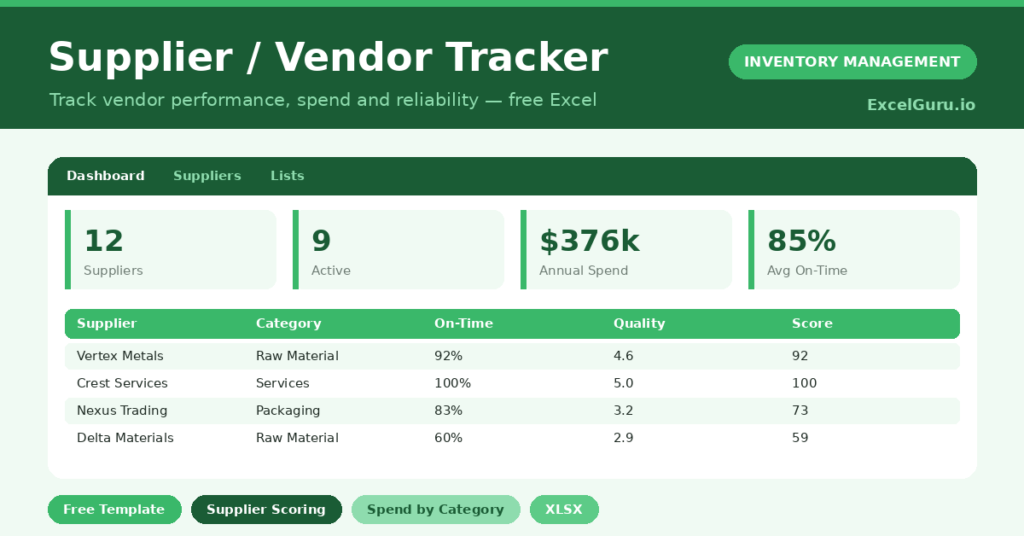
This free supplier tracker pulls everything into one place. You record each vendor once, and the sheet scores their reliability and quality automatically. You will also find realistic sample data already inside the file. Therefore, you can explore every formula, dropdown and chart first, and then replace the samples with your own records in minutes.
Below, we explain the scoring, the formulas, and how to adapt the tracker to your own supply base.
What Is a Supplier Tracker?
A supplier tracker is a spreadsheet that holds your full vendor list with contacts and terms. It also records how each vendor actually performs.
From delivery and quality data, it builds a single score per supplier. As a result, you can compare vendors fairly and spend with the best ones.
Why Does Supplier Management Matter?
A weak supplier can quietly damage your business. Late deliveries cause stockouts, and poor quality creates rework and returns.
Tracking performance turns vague impressions into hard numbers. Therefore, you can reward reliable vendors and challenge weak ones with evidence. Over time, this steadily improves the cost and quality of everything you buy.
Why Use This Template?
A clear tracker strengthens every supplier conversation. In particular, this one helps you:
- Keep all vendor contacts and terms in one place.
- Track on-time delivery and quality together.
- Score every supplier out of 100 automatically.
- See your total spend and where it goes.
- Decide which vendors deserve more business.
What’s Inside the Template?
The workbook has four tabs:
- How to Use — a built-in quick start guide.
- Dashboard — spend, status and on-time KPIs.
- Suppliers — one row per vendor with performance data.
- Lists — category, terms and status dropdowns.
What Formulas Does the Template Use?
The tracker uses clear Excel formulas:
| Formula | What it does |
| =On-Time Deliveries / Total Deliveries | Calculates each vendor’s on-time rate. |
| =ROUND(On-Time % * 50 + Quality * 10, 0) | Builds a single score out of 100. |
| =COUNTIF(Status,”Active”) | Counts your active suppliers. |
| =SUM(On-Time) / SUM(Total) | Calculates the overall on-time rate. |
| =SUMIF(Category, c, Annual Spend) | Totals spend for each category. |
How Do You Use the Template?
Setup takes only a few minutes. Just follow these steps:
- Open the Suppliers tab and add each vendor’s contact details.
- Set the lead time and payment terms.
- Enter on-time and total deliveries for the period.
- Add a quality rating and the annual spend.
- Let the on-time rate and score calculate automatically.
- Review spend and performance on the Dashboard.
What Are the Best Use Cases?
The tracker fits many teams, such as:
- Small businesses managing a handful of vendors.
- Buyers running annual supplier reviews.
- Operations teams chasing delivery reliability.
- Finance teams analyzing where spend goes.
- Anyone consolidating a messy vendor list.
How Can You Modify the Template?
You can tailor it freely. To change the score weighting, edit the formula so delivery or quality carries more weight.
You can also add columns, such as a contract renewal date or a risk rating, then surface them on the dashboard.
Moreover, the sheet covers 40 suppliers by default, and you can copy the formula row downward for more.
What Mistakes Should You Avoid?
A few habits weaken the tracker. Therefore, avoid these common mistakes:
- Recording spend but never updating delivery counts.
- Rating quality on gut feel instead of real issues.
- Leaving status fields blank, which breaks the counts.
- Ignoring a falling score until a vendor fails you.
Tips to Get the Most From It
- Update delivery counts after every order.
- Base quality ratings on real defects and returns.
- Review low scorers before renewing contracts.
- Shift spend gradually toward your top-scoring vendors.
Frequently Asked Questions
How is the supplier score calculated?
It blends the on-time rate and the quality rating into one figure out of 100. Therefore, a single number lets you rank vendors fairly.
Can I track spend across categories?
Yes. Each vendor has a category, and the dashboard totals spend by category so you can see where your money concentrates.
How many suppliers can it hold?
It is ready for 40 suppliers. However, you can copy the formula row downward to track many more.
Should I include inactive suppliers?
Keep them and mark the status Inactive. That preserves history without cluttering your active counts.
Does it work in Google Sheets?
It does, with small tweaks. After importing, re-check the dropdowns and conditional formatting.
Download the Template and Get Started
Your suppliers are partners in your success, and the best ones deserve more of your business. This tracker shows you who they are.
Download the Supplier & Vendor Tracker and start scoring your vendors today.