
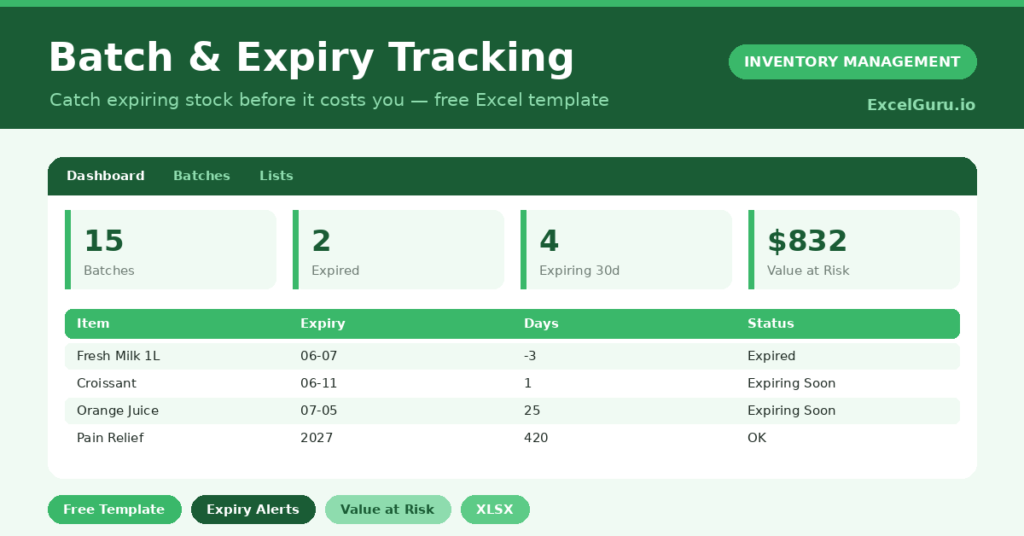
Expired stock is a double loss. You cannot sell it, and you often pay again to dispose of it safely. This free batch and expiry tracker keeps that loss in check. It flags every expired and soon-to-expire batch and totals the value at risk. You will also find realistic sample data already inside the file. Therefore, you can explore every formula, dropdown and chart first, and then replace the samples with your own records in minutes.
Below, we explain the alert tiers, the formulas, and how to adapt the tracker to your own stock.
What Is a Batch & Expiry Tracker?
A batch and expiry tracker records every batch of stock with its expiry date. It calculates how many days remain before each batch expires.
From those dates, it assigns a clear status. As a result, you can act on expiring stock long before it becomes a write-off.
Why Does Expiry Tracking Matter?
Selling expired goods is unsafe and, in many sectors, illegal. Missing expiry dates therefore risks both customers and compliance.
Early tracking turns that risk into a routine task. Therefore, you can discount, rotate or return stock while it still has value. The value-at-risk figure also shows exactly how much money is on the line.
Why Use This Template?
A clear expiry view prevents costly surprises. In particular, this one helps you:
- See expired and expiring batches instantly.
- Calculate days to expiry from today automatically.
- Total the value at risk in dollars.
- Sort batches into clear, coloured tiers.
- Rotate stock so the oldest sells first.
What’s Inside the Template?
The workbook has four tabs:
- How to Use — a built-in guide.
- Dashboard — expiry counts, value at risk and charts.
- Batches — one row per batch with dates and value.
- Lists — category and location dropdowns.
What Formulas Does the Template Use?
The tracker uses dependable Excel formulas:
| Formula | What it does |
| =Expiry Date – TODAY() | Calculates the days left before expiry. |
| =IF(Expiry<TODAY(),”Expired”,…) | Sets the status from the expiry date. |
| =Qty * Unit Cost | Calculates the stock value of each batch. |
| =SUMIF(Status,”Expired”,Value)+… | Totals the value at risk. |
| =MIN(upcoming days) | Finds the nearest upcoming expiry. |
How Do You Use the Template?
Setup is quick. Just follow these steps:
- Open the Batches tab and list each batch.
- Enter the manufacture and expiry dates.
- Add the quantity, unit cost and location.
- Let days to expiry, value and status calculate.
- Watch the colour flags appear automatically.
- Review the value at risk on the Dashboard.
What Are the Best Use Cases?
The tracker fits many businesses, such as:
- Food retailers managing perishables.
- Pharmacies tracking medicine expiry.
- Cafes and kitchens rotating ingredients.
- Cosmetics sellers watching shelf life.
- Warehouses storing dated goods.
How Can You Modify the Template?
You can adapt it easily. To change the alert windows, edit the 30 and 90 day figures in the status formula.
You can also add a supplier or batch-size column to support recalls.
Moreover, the sheet covers 40 batches by default, and you can copy the formulas down for more.
What Mistakes Should You Avoid?
A few habits weaken the tracker. Therefore, avoid these common mistakes:
- Leaving the expiry date blank, which hides the alert.
- Recording stock without its batch number.
- Ignoring amber Expiring Soon flags until they turn red.
- Selling newer stock before older batches.
Tips to Get the Most From It
- Always sell or use the nearest-expiry batch first.
- Review the value-at-risk figure every week.
- Set alert windows to match your reorder lead time.
- Act on amber batches with a discount before they expire.
Frequently Asked Questions
How does the template know what is expiring?
It compares each expiry date with today’s date. Therefore, the status updates automatically every time you open the file.
What does value at risk mean?
It is the total value of stock that has expired or expires within 30 days. It shows the money you could lose if you do nothing.
Can I use it for non-food stock?
Yes. Any dated stock works, such as chemicals, batteries or cosmetics. Just adjust the categories to suit.
What is FEFO?
FEFO means first expired, first out. The tracker supports it by showing which batches expire soonest, so you sell those first.
Does it work in Google Sheets?
It does, with minor adjustments to formatting after importing.
Download the Template and Get Started
Every expired item is money thrown away, and most of it is avoidable. This tracker helps you sell stock before time runs out.
Download the Batch & Expiry Tracking Template and protect your stock today.