
Key takeaways
- The repeatable way to extract rows that match criteria is a condition-based filter, not manual sorting and deleting.
- Excel Filter is free and open-source (MIT), built in Python with
pandas. - Conditions support
==,!=,>,<,>=,<=,~(contains),^(starts with). - Combine conditions with AND (default) or OR (
--match any). - Use
--columnsto keep only the columns you want in the output.
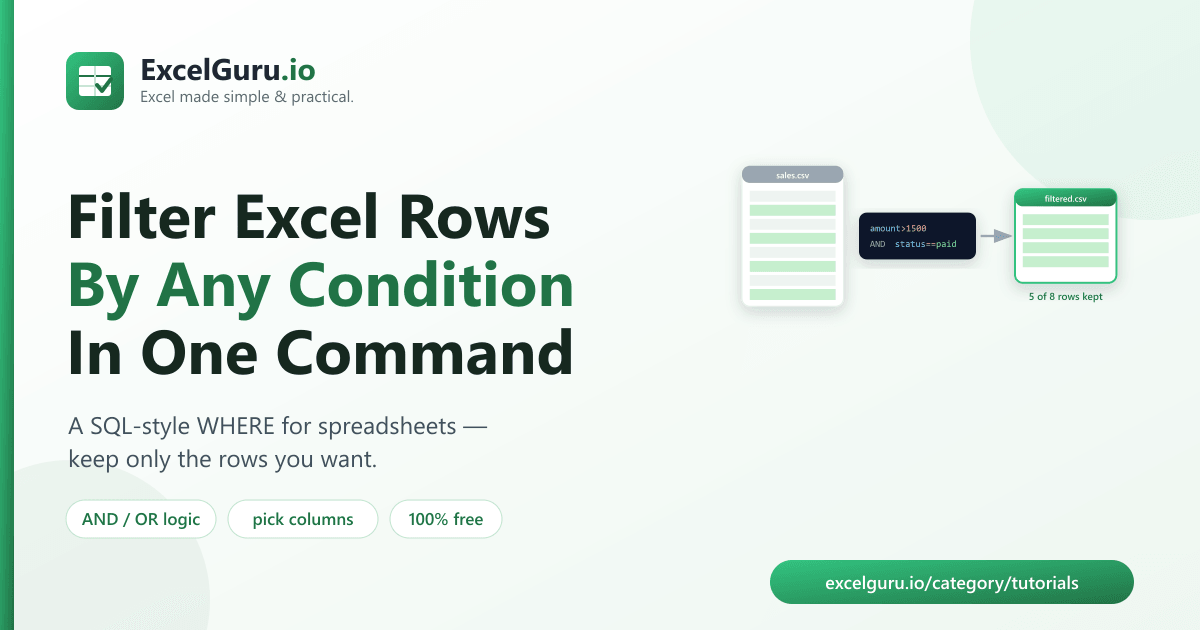
To filter rows in Excel by a condition, run a free tool called Excel Filter, which keeps only
the rows that match your conditions — like a SQL WHERE clause for a spreadsheet.
Filter by one or more rules such as amount>1000 or status==paid, combine
them with AND or OR, and optionally keep only the columns you need.
Why a repeatable filter beats manual work
Excel's AutoFilter is fine for a one-off look, but when you need the same filter every time the data updates — this week's paid orders over $1,000, this region's records, everything containing "widget" — clicking through filter menus and copying rows gets old fast, and it's easy to miss a row or grab the wrong ones.
A command-line filter turns your criteria into a single reusable command that returns exactly the matching rows, every time.
How to install the tool (2 minutes)
You need Python 3.9 or newer. Clone the repository and install its dependencies:
git clone https://github.com/Synth88Labs/excel-tool-filter.git
cd excel-tool-filter
pip install -r requirements.txt
Get Excel Filter on GitHub (free)
How to filter Excel rows — step by step
Step 1 — Filter by a single condition
Keep the rows where a column meets a condition, e.g. amount over 1500:
python filter_excel.py sales.csv --where "amount>1500"Step 2 — Combine conditions (AND / OR)
Repeat --where for multiple conditions. They're combined with AND by default:
python filter_excel.py sales.csv --where "status==paid" --where "region==West"Use --match any to combine with OR instead:
python filter_excel.py sales.csv --where "region==East" --where "amount>2500" --match anyStep 3 — Keep only certain columns
python filter_excel.py sales.csv --where "product~widget" --columns region,amount~ means "contains" and ^ means "starts with" — both
case-insensitive. So product~widget matches "Widget A", "widget b", and "MegaWidget".
The operators you can use
| Operator | Meaning | Example |
|---|---|---|
== | equals | status==paid |
!= | not equals | status!=refunded |
> < >= <= | numeric comparison | amount>=1000 |
~ | contains (case-insensitive) | product~widget |
^ | starts with (case-insensitive) | name^A |
Real work use cases
- Pull a segment — just the paid orders, the West region, this month's records.
- Find high-value rows — everything above a threshold for a follow-up.
- Text searches — every row whose product or note contains a keyword.
- Prep a subset — filter, then feed the result into a report or pivot.
- Repeatable extracts — save the command and rerun it whenever the data refreshes.
Common mistakes to avoid
- Comparing numbers stored as messy text.
"1,200"won't compare numerically — clean the formatting first so>and<work. - Case sensitivity on
==.status==Paidwon't match"paid". Use~for a looser match, or standardize the case first. - Expecting OR by default. Multiple
--whereconditions are AND unless you add--match any. - Spaces around the operator. Quote the whole condition
(
--where "amount > 1000"works, but keep it inside quotes so the shell doesn't split it).
Frequently asked questions
How do I filter rows in Excel by a condition?
Run python filter_excel.py yourfile.csv --where "column>value". The tool keeps only
the rows that match and writes them to a new file.
Can I filter by more than one condition?
Yes. Repeat --where for each condition. They combine with AND by default, or with OR if
you add --match any.
Can I do a "contains" text search?
Yes. Use the ~ operator, e.g. --where "product~widget" for a
case-insensitive contains match.
How do I keep only some columns?
Add --columns col1,col2 to output just those columns from the matching rows.
Is Excel Filter free?
Yes. It's open-source under the MIT license, free for personal and commercial use. The source is on GitHub.
Do I need Excel installed?
No. It reads and writes files with Python libraries, so it works without Microsoft Excel installed.
Does it change my original file?
No. It writes the filtered rows to a new file and leaves the source untouched.
Summary
Manually filtering a spreadsheet the same way every week is wasted effort. Excel Filter keeps only the rows that match your conditions in one command — a SQL-style WHERE with AND/OR logic and column selection. It's free, open-source, and works without Excel installed.