
Managing a website project can become difficult when there are many tasks to track. Design, development, content, SEO, testing, and launch all need careful planning. This is also understood as website development lifecycle.
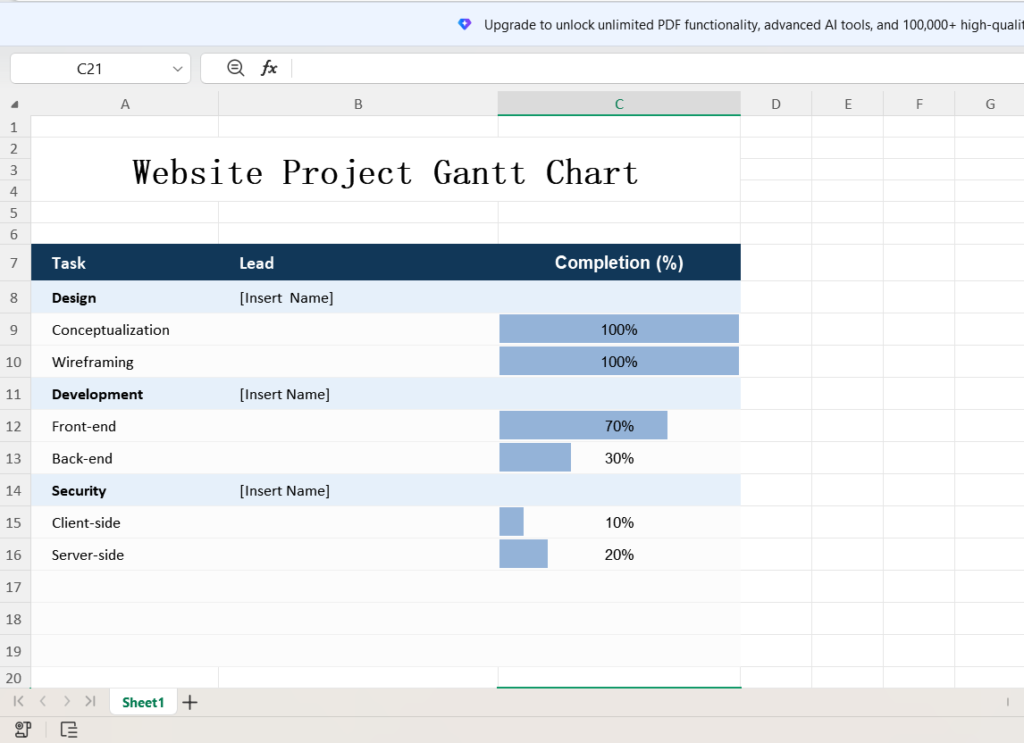
This Website Project Gantt Chart Excel Template gives you a simple way to manage those tasks. You can add tasks, assign a lead, track progress, and check the project status in one place.
Track Your Website Project
The template has three main fields:
- Task: Add the work that needs to be done.
- Lead: Assign someone to each task.
- Completion (%): Enter the current progress.
For example, a project may include UI design, content creation, front end development, back end development, SEO, testing, and website launch.
You can also replace the sample tasks with your own. As a result, the template can fit almost any website project.
See Project Progress Clearly
The Completion (%) column uses Excel Conditional Formatting Data Bars. These bars turn each percentage into a simple visual indicator.
For example, a task at 80% shows a longer bar than one at 30%. This makes it easier to spot tasks that need more attention.
The template also includes a horizontal bar chart. In addition, the chart gives you a quick view of progress across the project.
You can use this chart during project meetings, client updates, or internal reviews.
What Excel Features Are Used?
The template keeps the Excel setup simple, so you do not need complex formulas to track your project.
Enter a completion value, and Excel displays it as a percentage.
For example:
0.50 → 50%
0.75 → 75%
1 → 100%
Conditional Formatting creates the progress bars. Meanwhile, the chart uses your task names and completion values to show project progress.
Build a More Detailed Excel Gantt Chart
Need more control over your project timeline? In that case, you can expand the template with a few extra columns.
Consider adding:
- Start Date
- End Date
- Duration
- Status
- Priority
- Days Remaining
- Dependencies
You can then use simple Excel formulas to calculate important project details.
For example:
=End Date-Start Date
This formula calculates the task duration.
Similarly, you can use:
=End Date-TODAY()
This formula calculates the days remaining. As a result, you can quickly see which tasks are approaching their deadlines.
Once you add dates, formulas, and Conditional Formatting, the simple tracker can become a more detailed Excel Gantt chart.
Who Can Use This Template?
This website project tracker can help web developers, freelancers, agencies, project managers, and business owners.
It also works well for:
- Website redesigns
- Ecommerce projects
- Software projects
- SEO campaigns
- Digital marketing projects
- Landing page development
Because the template uses a simple structure, you can adapt it to almost any digital project.
Keep Your Website Project Organized
A complex project does not always need complex software.
Instead, a simple Excel tracker can give you a clear view of your work. You can see what needs to happen, who owns each task, and how much work remains. Also, checkout Gantts.app for “Free Online Gantt Chart Maker Tool“.
Start by adding your project tasks. Next, assign a lead to each task and enter the current completion percentage.
Finally, use the progress bars and chart to monitor the project as work moves forward.
With this Website Project Gantt Chart Excel Template, you can keep your website project organized and track progress without adding unnecessary complexity.