
Verbal orders and informal emails get construction jobs into trouble. A supplier ships the wrong grade of cement. A tool arrives in the wrong quantity. An invoice arrives with a price that nobody agreed to in writing. Without a formal purchase order, there is no documented record of what was ordered, at what price, and by whom.
A construction purchase order template closes that gap. It creates a formal, numbered, dated document that specifies exactly what was ordered, the agreed unit price, any applicable tax and shipping costs, and the payment method — before anything ships. It protects the buyer, gives the supplier a clear reference document, and creates a paper trail that accounts, project managers, and auditors can follow.
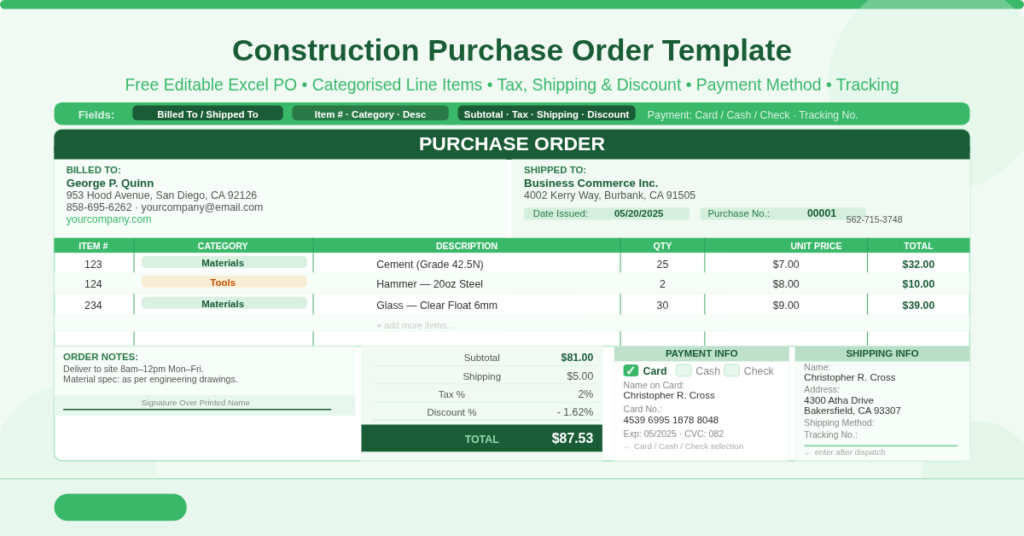
This free editable Excel Construction Purchase Order Template gives you a professional, single-page PO document that covers every field a construction purchase requires — from line-item categorisation to card payment details and shipping tracking. Fill in the brackets, print, sign, and issue.
Download the free Construction Purchase Order Template and issue every order on paper, not just on a phone call.
What Is the Construction Purchase Order Template?
The Construction Purchase Order Template is a free, single-sheet Microsoft Excel workbook that produces a formal PO document. It covers the complete purchase cycle for a construction order: who is buying, who is supplying, what is being ordered by category, what the agreed price is, how payment will be made, and where and how the goods will be shipped.
The template is designed to be editable — every field is a clearly marked placeholder in square brackets, ready to be replaced with actual values. The structure follows the standard PO format familiar to suppliers, subcontractors, and construction procurement teams. Consequently, suppliers receive a document they recognise and can process without clarification.
The Dual-Party Header — Billed To and Shipped To
Every purchase order defines two parties clearly. This template displays both in a side-by-side panel at the top of the document.
Billed To (Buyer)
The left panel captures the buyer’s details — the party issuing the PO and responsible for payment. Fields include the buyer’s name, street address, phone number, email, and website. These fields are static for most construction firms: enter your company details once and they remain across every PO you issue from this file.
Shipped To (Vendor / Delivery Recipient)
The right panel captures the delivery address — where the ordered goods should be sent. In many construction purchases, this is a job site address rather than the company’s office address. Separating the billing address from the shipping address directly on the PO eliminates the most common source of delivery errors: suppliers defaulting to the billing address when the goods are needed on site.
Two reference fields sit alongside the Shipped To panel: Date Issued and Purchase No. The date stamps the PO for the record. The purchase number (sample: 00001) provides a sequential reference that both buyer and supplier use to match invoices, delivery notes, and payment records.
The Line Items Table — Category, Description, and Pricing
The line items table is the operational core of every purchase order. This template’s table includes six columns: Item #, Category, Description, Qty, Unit Price, and Total.
The Category Column
The Category column is a distinguishing feature of this template. It does not appear in basic purchase order designs. In construction procurement, categorising each line item — Materials, Tools, Equipment, Safety, Subcontract — serves two important purposes. First, it makes the PO readable and sortable for the project manager reviewing costs against budget codes. Second, it gives the accounts payable team the category information they need to allocate spend correctly without going back to the project for clarification.
The sample data demonstrates this directly: Item 123 (Cement, 25 units) is categorised as Materials. Item 124 (Hammer, 2 units) is categorised as Tools. Item 234 (Glass, 30 units) is categorised as Materials. A single PO can therefore span multiple cost categories clearly, without requiring separate orders per category.
Item Number and Description
The Item # column provides a unique reference for each ordered item. Suppliers use this to match items on their packing slips and invoices to the original PO. The Description column captures the specific item — grade, specification, model number, or any other identifying detail that prevents substitution.
Qty, Unit Price, and Total
Quantity and unit price drive the Total column for each row. Enter the quantity and agreed unit price, and the Total column reflects the line value. Unused rows default to zero and do not affect the subtotal.
The Totals Panel — Tax, Shipping, and Discount
The totals panel to the right of the Order Notes section provides a complete cost summary with five calculated lines.
Subtotal sums all line item totals across the table. In the sample data, the three items total $81.
Shipping is a fixed entry field for the delivery cost — $5 in the sample. This separates freight from goods costs, which is important for VAT/tax purposes and for job costing accuracy.
Tax % and Tax Amount work together. Enter the applicable tax rate in the Tax % field and the Tax Amount calculates accordingly. The sample shows 2% tax applied to the order.
Discount % and Discount Amount allow a negotiated discount to be formally documented on the PO itself. This is particularly valuable in construction procurement where volume discounts, trade account discounts, or early payment discounts are common. Documenting the discount percentage on the PO eliminates disputes when the supplier invoice arrives at a different figure than expected.
Total brings all five elements together: Subtotal + Shipping + Tax Amount − Discount Amount. The sample total is $87.53.
Order Notes and Signature
Below the line items, a free-text Order Notes section provides space for any special instructions — delivery time windows, site access requirements, material specifications, packaging instructions, or any other condition that applies to the specific order.
A Signature Over Printed Name line sits at the bottom of the left section. The authorised signatory’s signature converts the document from a draft into a formal, binding purchase order. This is the field that makes the PO legally defensible — it demonstrates that a responsible person within the organisation approved the purchase before it was issued.
Payment Information and Shipping Details
Two bottom panels capture the transaction’s financial and logistical close-out information.
Payment Information
The Payment Information section records how the order will be paid. Three payment method checkboxes cover the most common options: Card, Cash, and Check. When Card is selected, the section includes fields for the cardholder’s name, card number, expiry date, and CVC. These fields allow the buyer to pre-authorize the payment method at the time of ordering rather than resolving it separately after delivery.
Shipping Information
The Shipping Information section records the delivery recipient’s full name and address — distinct from the Shipped To panel above, which holds the destination address. This section also includes fields for Shipping Method and Tracking No. Entering the tracking number after dispatch closes the PO loop: the PO contains the order, the payment authorization, and the delivery confirmation reference in a single document.
Who Should Use This Template?
General contractors and site managers ordering materials and tools from suppliers will issue POs for every significant purchase to create a documented audit trail that supports job costing and supplier invoice matching.
Procurement teams in construction firms who manage vendor relationships across multiple projects will use the sequential purchase number field to maintain an organised PO register that connects each order to its supplier invoice and delivery record.
Small construction businesses and sole traders who currently place orders informally will use this template to professionalise their procurement process immediately — no software purchase required.
Project accountants and cost controllers will use the category column and the itemised totals to allocate purchase costs to the correct budget codes without requiring supplementary information from the site team.
Architects, interior designers, and fit-out contractors ordering specified materials — tile grades, glazing specifications, fixings — will use the Item # and Description columns to ensure suppliers deliver exactly what was specified on the PO, not a substitution.
How to Use the Template
Open the workbook. Replace the Billed To fields with your company’s details. For each new order, enter the supplier’s Shipped To address, Date Issued, and a sequential Purchase No.
In the line items table, replace each bracketed item with the actual item number, category, description, quantity, and unit price. The Total column calculates automatically. Add the shipping cost, tax rate, and any applicable discount in the totals panel.
Complete the Order Notes section with any special delivery or handling instructions. Enter the payment method and, if paying by card, the card details. After dispatch, enter the tracking number in the Shipping Information section.
To issue the PO, print the sheet or export it as a PDF via File > Print > PDF. Sign the printed copy or obtain a digital signature. Send the signed PO to the supplier as the formal order document.
Download the Free Construction Purchase Order Template
Every construction purchase deserves a paper trail. This editable Excel template gives you a categorized line item table, a complete totals panel with tax, shipping, and discount, a payment method section, and a shipping tracking field — all on one printable page.
Download the free Construction Purchase Order Template now and issue every order as the professional document it should be.