
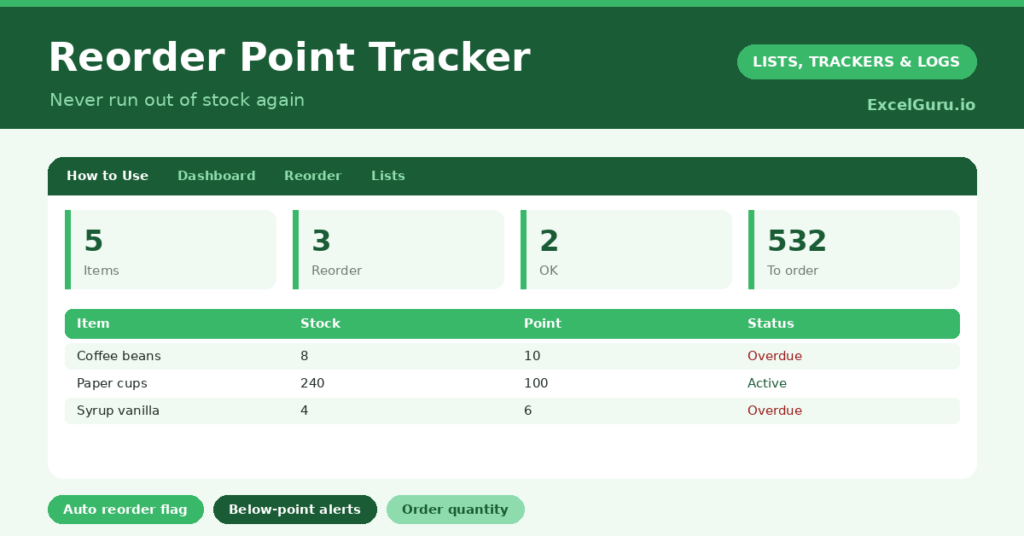
A reorder point is the stock level at which you need to order more, and tracking it is what keeps a business from the twin disasters of running out and over-ordering. Guessing when to reorder leads to empty shelves or cash tied up in excess stock. So a tracker that flags each item the moment it dips too low is genuinely valuable.
This free template lets you set a reorder point for each item and compares it against your current stock level. So it flags automatically when something needs reordering. As a result, you can see exactly what to order and how much, before you ever run out.
What does the reorder point tracker include?
The template is one stock list feeding a clear dashboard. A dropdown keeps suppliers tidy. In short, you get the following:
- A stock list with the SKU, item, current stock, reorder level, reorder quantity, an automatic status and supplier.
- An automatic status that reads Reorder or OK for every item.
- A dropdown for supplier, so you can group orders by where they come from.
- Colour-coding, so items needing a reorder stand out in red.
- A dashboard showing total items, items to reorder now, items that are OK, total stock units, distinct suppliers and the total units to reorder.

Which formula powers the reorder point tracker?
The logic is one clean formula. The status is =IF(Current Stock <= Reorder Point, “Reorder”, “OK”), so the moment an item’s stock falls to or below its reorder point, it is flagged. A rule then highlights those items in red, so they are impossible to miss.
On the dashboard, a COUNTIF counts how many items need reordering, and a SUMIF totals the reorder quantities for just those items. So you can see at a glance not only what to order, but how many units in total. So the tracker turns stock levels into a ready-made order list.
Why use a reorder point tracker?
The first benefit is never running out. A stockout means lost sales and disappointed customers, and it is entirely avoidable with a reorder level set. So the tracker protects your revenue and your reputation.
The second benefit is avoiding over-ordering. Holding too much stock ties up cash and space, and a sensible reorder level keeps inventory lean. The tracker also makes ordering efficient, since you can group by supplier and order in one go. Furthermore, the reorder quantity removes guesswork about how much to buy. In short, the tracker keeps your stock at just the right level.
What does the dashboard reveal?
The dashboard is your ready-made ordering list. The reorder-now count is the figure that matters, since it tells you how many items have hit their threshold. So it is your action list for the day.
The units-to-reorder figure totals the quantities you need, useful for planning a purchase order. The OK count is reassuring, showing what is well stocked. The distinct-suppliers figure helps you group orders efficiently. Because the statuses update as you adjust stock, your ordering list is always current. So the dashboard turns stock-keeping into simple, timely action.
How do you use it?
List each item with its current stock, and set a sensible reorder level and reorder quantity. So the tracker knows when and how much to flag. Setting good reorder levels is the key step, balancing supplier lead times against how fast an item sells.
Then update the current-stock figures regularly, whether from a count or your system. The statuses flag anything that has dipped too low, and the dashboard tallies your order. Group by supplier, place your orders, and update the stock once they arrive. Because the tracker watches the levels for you, you reorder on time without constant checking. In short, set good points and keep stock current.
How do you customise it?
Edit the suppliers on the Lists tab to match yours. Additionally, you can add columns for the unit cost, the supplier lead time in days, or the last order date. A column calculating the order value helps with budgeting. The template suits a small shop, a café, a workshop, or any operation that holds stock.

What mistakes should you avoid?
The first mistake is setting these levels carelessly, since a point set too low still leads to stockouts. So base each one on how fast the item sells and how long the supplier takes. The second mistake is letting the current-stock figures drift out of date.
The tracker only works if the stock levels are accurate, so update them regularly. Finally, do not ignore the reorder flags. The whole point is to act on them promptly, so a red status should trigger an order, not a shrug. Timely reordering is what keeps your shelves full.
Frequently asked questions
How does the reorder point tracker know what to reorder?
It compares each item’s current stock against the level you set. When stock falls to or below that level, the status flips to Reorder and the item is flagged in red on the list and counted on the dashboard.
How do I set a good reorder point?
Base it on how fast an item sells and how long your supplier takes to deliver. The point should be high enough that you do not run out during the lead time, with a little buffer for safety.
Can it tell me how much to order?
Yes. Each item has a reorder quantity, and the dashboard totals the quantities for everything flagged. So you get both what to order and the total units in one view.
List your stock, set sensible reorder levels and quantities, and keep the levels current. The dashboard then flags exactly what to order and how much. A reorder point tracker takes the guesswork out of stock control, so you never lose a sale to an empty shelf or tie up cash in stock you did not need.