
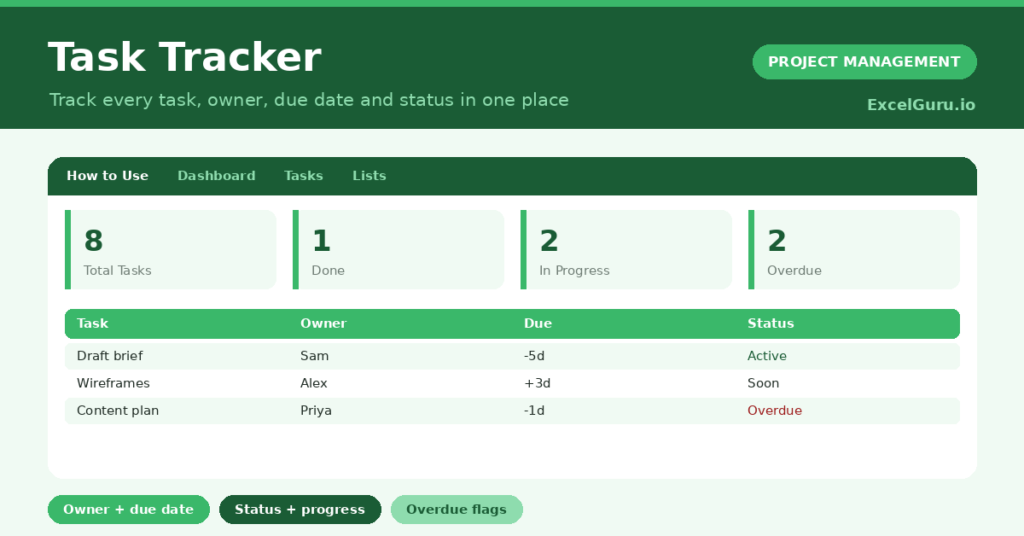
A task tracker template is the difference between holding your work in your head and seeing it laid out in front of you. So this free Excel version gives you that clarity in seconds. Work has a way of multiplying. First a handful of tasks becomes a sprawling list. Then deadlines pile up. Soon, remembering what is due, who owns it and what is outstanding becomes a job in itself.
So a good tracker takes that weight off your mind. First, it captures every task with its owner, priority and due date. Then it tracks the status of each one as you work. Finally, it sums the whole picture up on a dashboard. So instead of wondering whether something has slipped, you simply look. In short, the rest of this guide shows you how.
Also, check out Project Task Tracker in Excel and Project Timelines Excel Template.
What is a task tracker template?
A task tracker template is a structured spreadsheet for recording tasks. Then it follows them through to completion. At its heart sits a simple table. So there is one row per task. Next to each one sit the columns you care about. For example, who owns it, and when it is due.
Because each row holds the same facts, the list becomes easy to read. So you always know how important a task is. You also know what state it is in. Plus you know how far along it is. In short, that structure turns a vague list into something you can manage. Indeed, it is the difference between a pile of obligations and a system.
The word template matters here. So you are not starting from a blank sheet. Also, you do not have to decide which columns to add. Because the structure, the formulas and the dashboard are already built, you save real time. Then you just add your tasks and the system works. In practice, all the thinking has been done for you.
Why use a task tracker template?
First, there is visibility. So every task lives in one place. Its owner and deadline sit beside it. Then you can see the whole of your work at once. As a result, nothing hides in an inbox or a half-remembered chat. After all, you cannot manage what you cannot see.
Second, there is accountability. Because every task gets one owner, it is clear who is responsible. So it removes the awkwardness of chasing. It also stops a task falling between two people. In a team, that clarity is worth more than any feature. Indeed, it is the quiet habit that keeps work moving.
Third, there is control over deadlines. So the template counts down to every due date. Then it flags anything that slips past. As a result, overdue work cannot pile up quietly. Instead, it is surfaced the moment it is late. Paired with the priority column, this puts your attention where it matters most.
Why build it in Excel?
Excel is a natural home for a task list. After all, a list is tabular by nature. So a spreadsheet lets you sort, filter, colour-code and total with ease. Plus there is nothing to install. There is also no account to create. Best of all, there is no monthly fee.
So you own the file. It also works offline. Then you can shape it however you like. For example, you can email it, drop it in shared storage, or print it for a meeting. In practice, for many people that is all the project management they ever need.
Of course, dedicated tools are powerful. Still, they bring overhead. For instance, a learning curve, a licence to manage, and data on someone else’s server. So a task tracker template gives you most of what they offer, with none of that friction. As a result, many capable teams never move on from it.
Who needs a task tracker?
First, project managers are the obvious audience. After all, a project is a structured set of tasks with owners and deadlines. So the tracker is the perfect place to hold them. It also gives a live view of progress. Then it turns the weekly status update into a glance at the dashboard.
Next, small teams without project software benefit just as much. For example, a marketing team planning a campaign. Or a dev team working a backlog. So they can all run on a shared tracker. Because everyone already knows spreadsheets, there is nothing new to learn. As a result, the team gets structure without cost or complexity.
Freelancers also juggle work across several clients. So if you add a client column, one tracker holds every commitment. Individuals use it too. For instance, a student tracking assignments, or a homeowner managing a renovation. In short, the tracker scales down to one person and up to a whole team without changing shape.
What is inside this task tracker template?
Open the file and you find a small set of clearly labelled sheets. So each one has a job to do. Together, they make the template easy to pick up and hard to get wrong. Here is what you get:
- A Tasks sheet, the heart of the template. So you list every task with its owner, priority, due date, status, percent complete and an automatic days-left countdown.
- A Dashboard sheet that summarises everything. For example, total tasks, completed, in progress, overdue, blocked and the average completion.
- A How to Use sheet with short, practical steps. So anyone can start straight away.
- A Lists sheet holding the dropdown options. As a result, entries stay consistent and tidy.
- Built-in colour coding that turns each status into a colour. So the state of your work is visible at a glance.
So the structure is deliberately lean. There is enough to give you real control. Still, there is nothing so elaborate that maintaining it becomes a chore. Because every column earns its place, nothing is wasted. Of course, you can add to it later. Even so, the starting point is useful on day one.
The core columns explained
Each column captures one fact about a task. First, the Task column is the name of the work. So keep it short and action-led. Also, start with a verb, so it is clear what done looks like. For example, write Draft the brief, not Brief.
Next, the Owner column names the one person responsible. So keep it even on a solo list. Then, when you later share the work, the ownership is already recorded. On a team, one clear owner per task is the single most important habit. Indeed, shared ownership usually means nobody owns it.
Then there is the Priority column. So it is a dropdown of High, Medium and Low. As a result, you can sort the important work to the top. It also stops a long list feeling like a flat wall of obligations. In short, it is what lets you decide where to spend a limited day.
The status and progress columns
First, the Due Date column drives the deadline logic. So from it, the template works out the Days Left for every unfinished task. Then the countdown goes negative when a task is overdue. As a result, a glance down the column tells you what is coming and what has slipped.
Next, the Status column is also a dropdown. So it records whether a task is Not Started, In Progress, Done or Blocked. Then the cell colours itself to match. As a result, you read the state of your work by colour. In practice, that is far faster than reading each word.
Finally, the Percent Complete column lets you record partial progress. So you do not need to be precise. For example, a sense of a quarter, half or three-quarters done is plenty. Then it feeds the average completion figure on the dashboard. As a result, you get a feel for overall momentum.
The formula behind the deadline countdown
The template looks simple, and that is the point. Still, a few formulas do real work behind the scenes. So the most visible is the Days Left countdown. For every task that is not yet done, it works out the gap between the due date and today.
So the formula is =IF(OR(Task=””,Status=”Done”),””,Due Date-TODAY()). Because of the IF, it skips blank rows and finished tasks. Then, for everything else, it counts down. Crucially, it uses the TODAY() function. So the countdown is always current.
For example, open the file next week. Then every figure has moved on by seven days. Yet you did not touch a thing. So that live countdown turns a static list into a deadline radar. In short, it is always telling you the truth about time.
The formulas behind the dashboard
The dashboard is where the counting happens. So COUNTIF formulas tally how many tasks carry each status. As a result, you get an instant count of completed, in-progress and blocked work. Then each figure updates the moment you change a status.
The overdue figure is cleverer. So a SUMPRODUCT counts every task whose due date has passed and whose status is not Done. Because it is one expression, it stays compact. It also ignores blank rows safely. As a result, empty space below your list never throws the count off.
Finally, an AVERAGE across the percent-complete column gives the overall progress. So none of this needs editing. Because the formulas are written once, they simply work as you add rows. Still, understanding them helps. Indeed, that understanding is what lets you trust the numbers and extend the template.
Try Gantts.App if you want to explore online free Gantt Chart Maker for your Project.
How to use the task tracker, step by step
Getting started takes only a few minutes. So the habit you build around the template matters more than any feature. Here is the workflow that gets the most from it:
- Capture every task. Add a row for each piece of work. Then write a short, action-led name. So empty your head and your inbox into the list.
- Add the details. Name the owner, set the priority and enter a due date. Because an invented date trains you to ignore the column, be honest about deadlines.
- Set the status and progress. Mark each task Not Started, In Progress, Done or Blocked. Also add a rough percent complete for anything underway.
- Keep it current. Update the tracker daily. So a tracker reviewed daily becomes the truth, while one left for a fortnight becomes fiction.
So that last step is the one that matters. Because the dashboard is only as honest as your updates, the habit is everything. In practice, the five minutes a day you spend keeping it current is the best-spent time in your week. After all, it is the price of a system you can actually trust.

A worked example
So picture a small team launching a new landing page. This is the sample data the template ships with. The list holds eight tasks across three people. So Sam, Priya, Alex and Jordan share the work. For example, from drafting the brief to the launch checklist.
First, drafting the brief is Done and fully complete. So it drops out of the deadline logic and shows green. Next, the stakeholder interviews are In Progress at sixty percent. Yet their due date has passed. As a result, Days Left shows a negative number and the task counts as overdue.
Then designing the wireframes is In Progress, due in three days, thirty percent done. So it shows blue with a healthy countdown. Meanwhile, the content plan is Blocked at twenty percent and a day late. So it shows red and adds to both counts. Finally, the rest are Not Started, sitting amber.
Now look at the dashboard. So it reports eight tasks. One done. Two in progress. Two overdue. One blocked. Then the average completion is around twenty-six percent. As a result, in one glance the lead knows the project is early, two pieces need chasing, and one task is stuck. In short, no meeting was needed.
How to read the dashboard
So the dashboard turns your list into six numbers. First, the total tasks figure is your scope. So if it keeps climbing, you may be taking on too much. Next, the completed count is your progress. Indeed, it is the satisfying tally of finished work.
Then the in-progress number shows how much is genuinely underway. So if it is very high, you may be spread too thin. Crucially, the overdue figure is the one to watch most. After all, it is work that has already slipped. As a result, it needs attention today.
Finally, the blocked count is subtler but just as important. Because a blocked task cannot move until something else happens, it sits silently and derails timelines. So surfacing it forces a question. Namely, what is the block, and who can clear it? Meanwhile, the average completion gives a feel for momentum.

Customising the task tracker template
So the template is a starting point, not a straitjacket. A few thoughtful additions tailor it to your work. For example, the most common is a project or client column. As a result, one tracker can serve several projects at once. Then, if you sort or filter by it, each project’s tasks gather together.
Also, a start date alongside the due date shows when work should begin. Then an estimated hours column turns the tracker into a light capacity tool. So you can total the effort sitting with each owner. As a result, you can rebalance before someone is overwhelmed. Plus a notes column gives each task room for context.
You can reshape the dropdowns too. So the priority list suits most people. Still, you might prefer a numbered scheme. Likewise, the status list can grow to include In Review or On Hold. Then edit the options on the Lists sheet. As a result, the dropdowns and dashboard adjust to match.
Keep your customisations lean
So the guiding principle is restraint. Because every column you add is a column you must keep filled in, more is not always better. Indeed, an over-engineered tracker is one people quietly abandon. After all, the more fields there are, the more friction there is. And friction is what kills a tracker.
So add only what genuinely helps you decide what to do next. Instead of capturing everything, capture what you will act on. In short, a lean tracker that is always current beats an elaborate one that no one maintains. Indeed, that is true every single time.
So if you are not sure whether a column earns its place, leave it out. Then you can always add it later, once a real need appears. After all, it is far easier to grow a simple template than to rescue an overgrown one.
Best practices for task tracking
So a template is only half the answer. The habits around it are the other half. Crucially, the most valuable habit is keeping the tracker current. Because a tracker you update daily becomes the source of truth. Meanwhile, one you let drift becomes a museum, and you stop trusting it.
Also, write tasks as actions. For example, a task called Website is a worry. Yet a task called Publish the homepage copy is a job you can finish. So starting each task with a verb forces you to define what done means. As a result, the work is easier to start and clear to complete.
Then keep tasks roughly the same size. After all, a three-week task does not belong beside a ten-minute one. So break large tasks into smaller, finishable pieces. Then each gets its own row. In short, steady progress on many small things beats stalled progress on a few enormous ones.
Common mistakes to avoid
First, the most common mistake is letting the tracker fall out of date. Because people act on it, a wrong status misleads them. So if a status is wrong, the dashboard is wrong too. Then decisions made from it are wrong. So the fix is habit, not effort. Namely, a small, regular update.
Second, avoid tracking everything. Of course, it is tempting to pour every stray thought into the list. Still, a tracker swamped with trivia buries the work that matters. So reserve it for tasks that genuinely need following. Meanwhile, let truly minor things just get done.
Third, avoid vague ownership. Because a task with no owner becomes nobody’s, always name one. So does a task shared between several people. Then there is inventing deadlines. So if half the dates are arbitrary, you learn to ignore the column. As a result, the real deadlines lose their force.
Task tracker vs to-do list vs project software
So it helps to know where the tracker sits. First, a plain to-do list is the simplest tool. So it is a flat list, ticked off as you go. It is perfect for one person’s day. Yet it has no owner, no deadline logic and no overview. As a result, it strains under a real project or a team.
Next, at the other end sit full project platforms. For example, boards, timelines, automations and integrations. Of course, they are powerful. Still, they bring cost, a learning curve, and another system to keep up to date. So for many teams that power is more than they need.
Then the task tracker template lives in the productive middle. So it is far more capable than a to-do list. Yet it is far lighter than dedicated software. In short, the honest test is simple. Namely, if a spreadsheet does everything you need, you do not need anything more.
Adapting it for a team
So for a team, the tracker becomes a shared source of truth. First, keep one copy in shared storage. Then everyone works from the same file. Also, agree a simple convention for owners. Finally, let the dashboard drive your stand-ups.
So rather than going round the room, the team looks at the overdue and blocked counts. Then you talk about those. As a result, it is faster and far more honest than a verbal round-robin. Plus, adding a project column lets one file cover several streams of work.
Also, one person should own the file itself. So they keep its structure tidy. Then, if two people edit at once, they step in. In short, that light stewardship is all a shared tracker needs to stay reliable.
Adapting it for freelancers and personal use
So for a freelancer, the priority is keeping many clients’ work straight. First, add a client column. Then sort and filter by it. As a result, the single tracker becomes a portfolio view. For example, every commitment visible, and each client’s work a filter away.
Here, the deadline logic matters most. After all, freelance trouble almost always comes from a deadline that crept up unseen. So the overdue flag catches it before it bites. In short, it is your safety net across competing clients.
Meanwhile, for personal use, strip the template back. So drop the owner column if it is only ever you. Then lean on category and priority to organise your life. As a result, the same structure that runs a team project will happily run your studies or your side project.
Tips to get the most from your tracker
So a few small techniques turn a good tracker into one you rely on. First, sort by priority each morning. As a result, the most important work rises to the top. Then your attention follows it. Also, filter to a single owner before a one-to-one. So you have an instant, honest agenda.
Next, use the colours. After all, the status colouring is not decoration. Instead, it is a fast way to read your list. For example, a column mostly red and amber tells a different story from one mostly green. So you take that in without reading a single task.
Finally, protect the formula columns once you are comfortable. So the calculations cannot be overwritten by accident. Also, keep a backup before any big reshuffle. Above all, trust the tracker enough to stop carrying the work in your head. Because that is the whole point of it.
What makes a good task name
So the name of a task does more work than it seems. First, a good name starts with a verb. For example, Draft, Send, Review, Build or Call. As a result, it reads as an action you can take. By contrast, a noun like Report just sits there. So it never quite tells you what to do.
Also, a good name is specific. So Review is vague, while Review the Q3 budget is clear. Because the second version names the thing, you know when it is done. In short, specificity is what turns a worry into a finishable job.
Finally, keep the name short. So put the detail in a notes column, not the title. Then the list stays scannable. As a result, you can read twenty tasks in a glance, rather than wading through a paragraph each. In practice, short and active beats long and descriptive every time.
Using the priority column well
So priority is only useful if you are honest with it. First, resist marking everything High. After all, if every task is urgent, then none of them is. So reserve High for the work that truly cannot wait. As a result, the column keeps its meaning.
Then use priority to plan your day. So each morning, sort the list by priority. As a result, the most important work rises to the top. Then you start there, before the day fills with noise. In short, priority decides the order, while the due date decides the deadline.
Also, revisit priorities often. Because the world changes, yesterday’s High may be today’s Low. So a quick weekly review keeps the column accurate. Meanwhile, a column left untouched slowly drifts from reality. In practice, priority is a living judgement, not a label you set once.
How to handle blocked tasks
So a blocked task is one that cannot move yet. For example, you are waiting on a reply, an approval or another task. Crucially, blocked work is dangerous because it hides. So it sits quietly while a deadline creeps closer. As a result, it derails timelines without warning.
So the template gives Blocked its own status and its own colour. Then the dashboard counts it as a separate figure. As a result, blocked work is impossible to ignore. Because you can see it, you can act on it.
Then, for each blocked task, ask two questions. First, what exactly is the block? Second, who can clear it? So a note in the task often helps here. In short, naming the block is the first step to removing it. Meanwhile, an unnamed block tends to stay stuck.
How often should you update it?
So the honest answer is little and often. First, a daily touch is ideal. Because the days-left countdown changes every day, a daily glance keeps you aligned with reality. So most people update the tracker first thing, while planning the day.
Then a second pass at the end of the day helps. So you mark off what is done and nudge statuses along. As a result, you finish the day with a clean, honest list. In practice, this bookends your day with five quiet, productive minutes.
Finally, do a longer review once a week. So you retire finished work, reassess priorities and add anything new. As a result, the tracker stays lean. After all, a list that only grows eventually becomes a graveyard. Meanwhile, a pruned list stays sharp and trusted.
Sharing, exporting and printing
So because the tracker is a single Excel file, sharing it is easy. First, you can email it as an attachment. Then the recipient opens it in Excel, with every formula intact. As a result, there is no special software and no account to set up.
Also, you can store it in shared cloud storage. For example, OneDrive, Google Drive or a network folder. So the whole team works from one copy. Then everyone sees the same dashboard, updated in real time. In short, one file becomes a shared source of truth.
Finally, you can print it for a meeting. So set the print area to the Tasks sheet, or the Dashboard. Then a one-page snapshot is ready to hand round. As a result, even people away from a screen can follow along. In practice, the file flexes to however you want to share it.
Building a weekly review habit
So daily updates keep the tracker honest, while a weekly review keeps it healthy. First, set aside fifteen minutes at the same time each week. For example, Friday afternoon or Monday morning. As a result, the review becomes a fixed habit, not an afterthought.
Then walk the whole list. So mark finished work as Done, and archive what is closed. Next, reassess every priority and due date. Because the week changed things, some tasks now matter more, while others matter less. So adjust them to match.
Finally, add anything new that appeared during the week. So the things scribbled on notes or buried in email come into the tracker. As a result, you start the next week with a complete, accurate picture. In short, the weekly review is what stops a good tracker from slowly going stale.
Scaling from one project to many
So you may start with a single project, then find you need more. First, the simplest move is one file per project. As a result, each project stays self-contained, with its own dashboard. So this suits people who like a clean separation.
Then, as you grow, a project column may serve you better. So one file holds every task, tagged by project. Because you can filter by the column, each project is still a click away. Meanwhile, the dashboard now shows the whole of your work at once.
Finally, choose the approach that matches how you think. So if projects rarely overlap, separate files are fine. Yet if you constantly switch between them, one tagged file wins. In short, the template scales both ways, so you are never forced into a structure that does not fit.
Frequently asked questions: getting started
Is this task tracker template really free?
Yes. So it is a free Excel file you can download, use and adapt with no cost. It works in any recent version of Excel. It also opens in Google Sheets and LibreOffice Calc. Still, a few of the conditional-formatting colours may render slightly differently outside Excel.
How is a task tracker different from a to-do list?
A to-do list is a flat list of things to do. By contrast, a task tracker adds an owner, a priority, a due date, a status and a dashboard. So it can handle a real project or a team, not just one person’s day. In short, think of it as a to-do list with the structure to scale up.
Do I have to fill in every column?
No. So the task name is the only essential. Of course, owner, priority, due date, status and percent complete all add value. Still, any can be left blank. Because the deadline logic skips tasks with no due date, a partial row never breaks anything.
Will the dates update by themselves?
Yes. So the days-left countdown recalculates every time you open the file. After all, it is worked out from today’s date. As a result, you never refresh anything. Then the due dates and statuses are yours to set, and everything else updates the moment you change them.
Frequently asked questions: using it day to day
Can a whole team use the same task tracker?
Yes, and it is one of the best ways to use it. So keep a single copy in shared storage. Then give every task one clear owner. Also, let the dashboard drive your check-ins. Plus, if you track several streams of work, add a project or client column.
How does the overdue count work?
So the dashboard counts every task whose due date has passed and whose status is not yet Done. Because it is one formula, it ignores blank rows. Then, since it compares against today’s date, the count refreshes every time you open the file.
Can I add my own columns and statuses?
Absolutely. So the template is built to be extended. For example, add columns for projects, clients, start dates or notes. Then edit the dropdown options on the Lists sheet. As a result, the formulas and dashboard keep working as you add rows.
What is the best way to keep it up to date?
So build a small, regular habit. For example, update it first thing, to plan the day. Then update it again at the end, to mark off what is done. As a result, five minutes a day keeps it honest. Meanwhile, a longer weekly review keeps it lean.
A quick checklist before you start
So before you dive in, run through a short checklist. First, download the file and open it in Excel. Then look at the sample data, so you can see how a filled-in tracker behaves. As a result, the structure makes sense before you change anything.
Next, clear the samples and add your own tasks. So write each name as an action. Then set the owner, priority and due date. After that, mark a status for each. Because the dashboard reads these fields, it comes alive as soon as you fill them in.
Finally, decide where the file will live. So if it is just for you, keep it handy on your desktop. Yet if it is for a team, put it in shared storage. In short, five minutes of setup now saves hours of confusion later.
Why a simple system beats a perfect one
So it is tempting to chase the perfect setup. First, you add a column, then a colour, then another rule. Yet complexity has a cost. Because every extra field needs maintaining, an elaborate tracker quietly becomes a burden. As a result, people stop updating it.
Meanwhile, a simple tracker survives. So it asks little of you each day. Then, because the effort is small, the habit sticks. In practice, a basic tracker you actually use beats a sophisticated one you abandon. Indeed, that is the whole game.
So start simple and stay simple. Then add complexity only when a real need forces it. As a result, the tracker stays light enough to live with. After all, the best system is not the cleverest one. Instead, it is the one you keep using.
Making the tracker your default
So the final step is trust. First, let the tracker hold your tasks, rather than your memory. Then, when a new job appears, write it down at once. As a result, nothing relies on you remembering it later.
Over time, this becomes a reflex. So you check the tracker to know what to do next. Then you update it the moment something changes. In short, the file becomes your default, and the mental juggling fades away.
A note on Excel compatibility
So you may wonder which version of Excel you need. First, the template works in any recent desktop version, on Windows or Mac. Then it also works in Excel for the web. Because the formulas use standard functions, nothing special is required. As a result, almost any copy of Excel will open it cleanly.
Also, the file opens in free tools. For example, Google Sheets and LibreOffice Calc both read it. So you are not locked into paying for Excel. Still, a few of the status colours may render slightly differently outside Excel. In practice, the core of the template works the same everywhere.
Finally, the file is a standard .xlsx. So it is safe to email, store and back up. Then, years from now, it will still open. After all, plain spreadsheets outlast almost every app. In short, you own this tracker for good.
Final thoughts
So most of the stress of a heavy workload is not the work itself. Instead, it is the effort of holding it all in your head. For example, the nagging sense that something is due. Or the fear that something has been forgotten. In short, the constant low-level juggling.
Thus, a task tracker template dissolves that stress. First, it gives every task a home, a deadline and a status. Then it shows you the whole picture on one dashboard. Of course, it does not do the work for you. Still, it makes the work visible, ordered and far less daunting.
Go ahead and download the template. Then spend a few minutes pouring your tasks into it. After that, keep it current. As a result, within a week it becomes the place you look first. In short, start with the list you are carrying right now, and let the tracker take the weight.